
Passkeys are a secure way for replacing passwords that is supported by all major browser vendors and an increasing number of websites. For more information on what passkeys are and how they work, please go to the FIDO Alliance’s documentation: https://fidoalliance.org/passkeys/
Browser Passkey Support
OpenVireo supports passkeys directly through the Browser Integration service. Passkeys are only supported with the use of the OpenVireo Browser Extension and a properly connected database. To enable passkey support on the extension, you must check the Enable Passkeys option in the extension settings page.
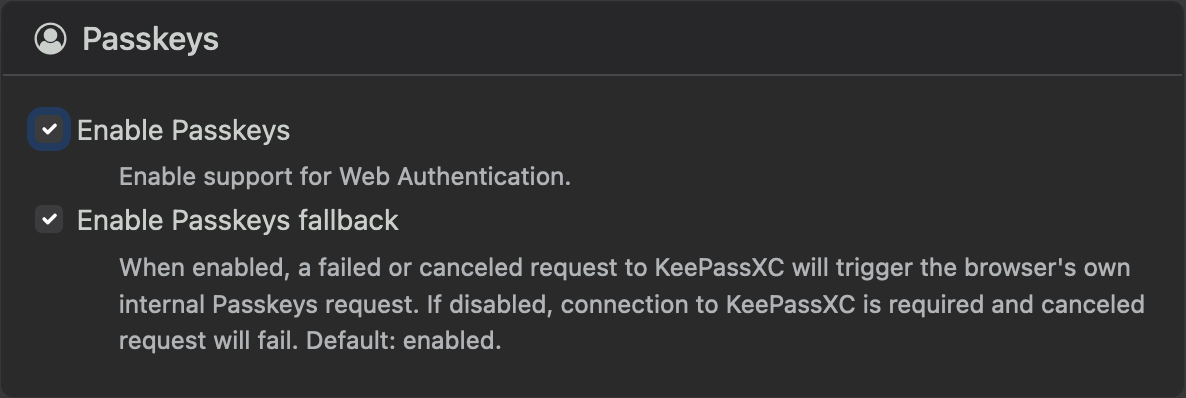
Optionally, you can disable falling back to the built-in passkey support from your browser and operating system. If left enabled, the extension will show the default passkey dialogs if OpenVireo cannot handle the request or the request is canceled.
Create a New Passkey
Creating a new passkey and authenticating with it is a simple process. This workflow will be demonstrated using GitHub as an example site. Please note that GitHub allows two use cases for passkeys, one for 2FA only and the other for replacement of username and password entirely. We will be configuring the latter use case in this example.
After navigating to GitHub’s Settings → Password and authentication, there is a separate section shown for passkeys.
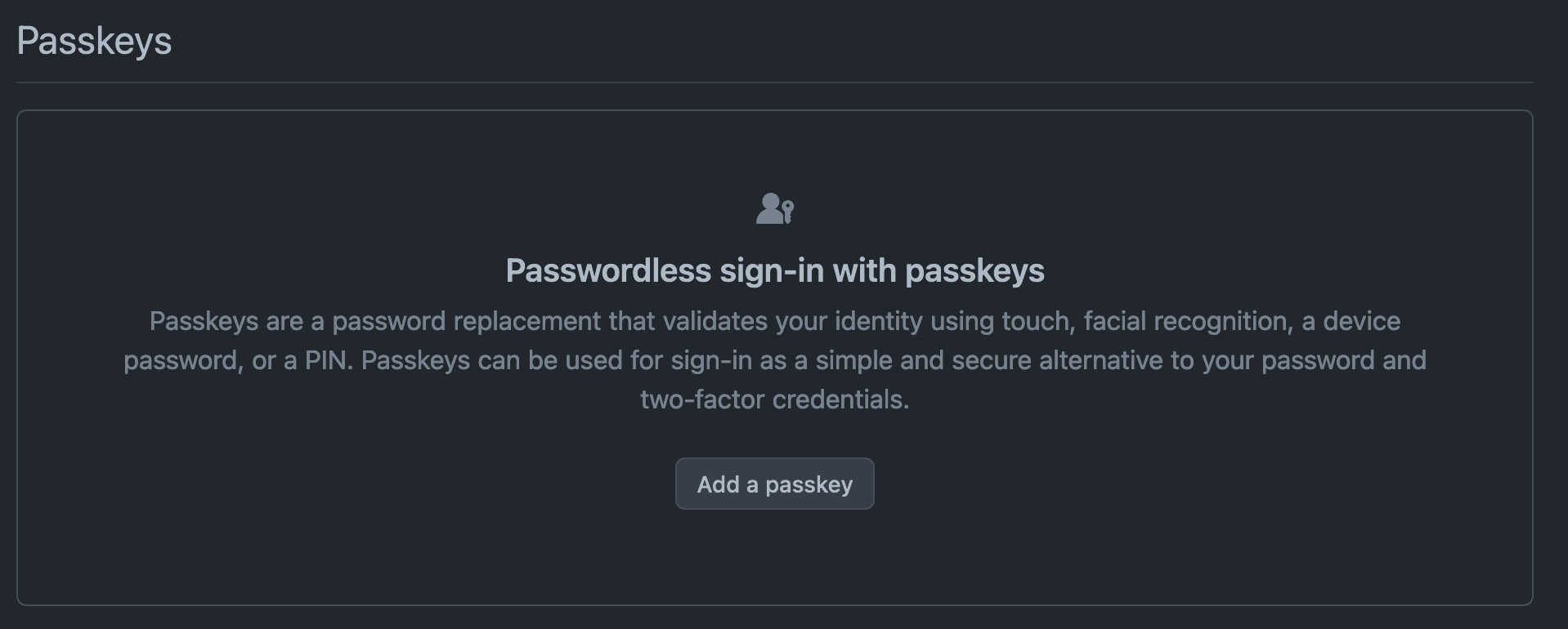
After clicking the Add a passkey button, the user is redirected to another page showing the actual configuration option.
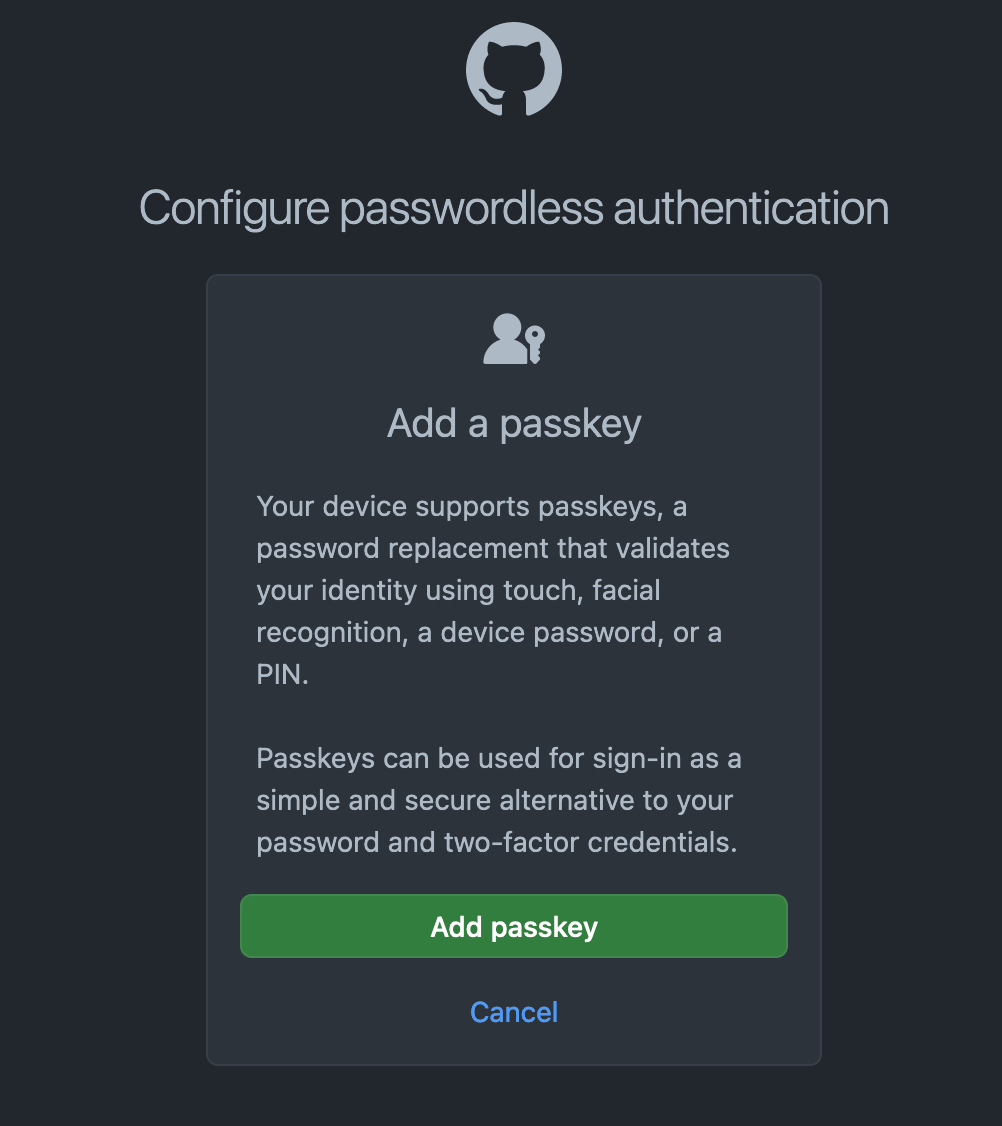
Clicking the Add passkey button now shows the following popup dialog for the user, asking confirmation for creating a new passkey.
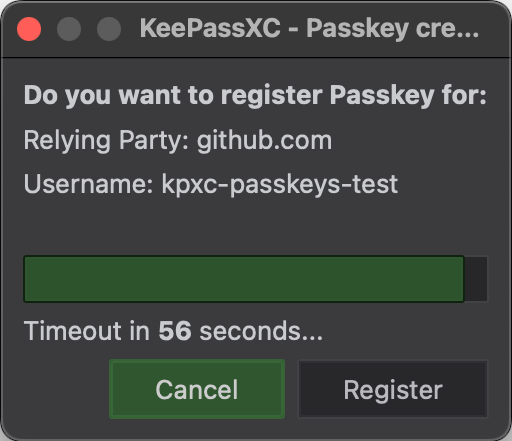
After the passkey has been registered, a new entry is created to the database under OpenVireo Browser Passwords with (passkey) added to the entry title. The entry holds additional attributes that are used for authenticating the passkey.
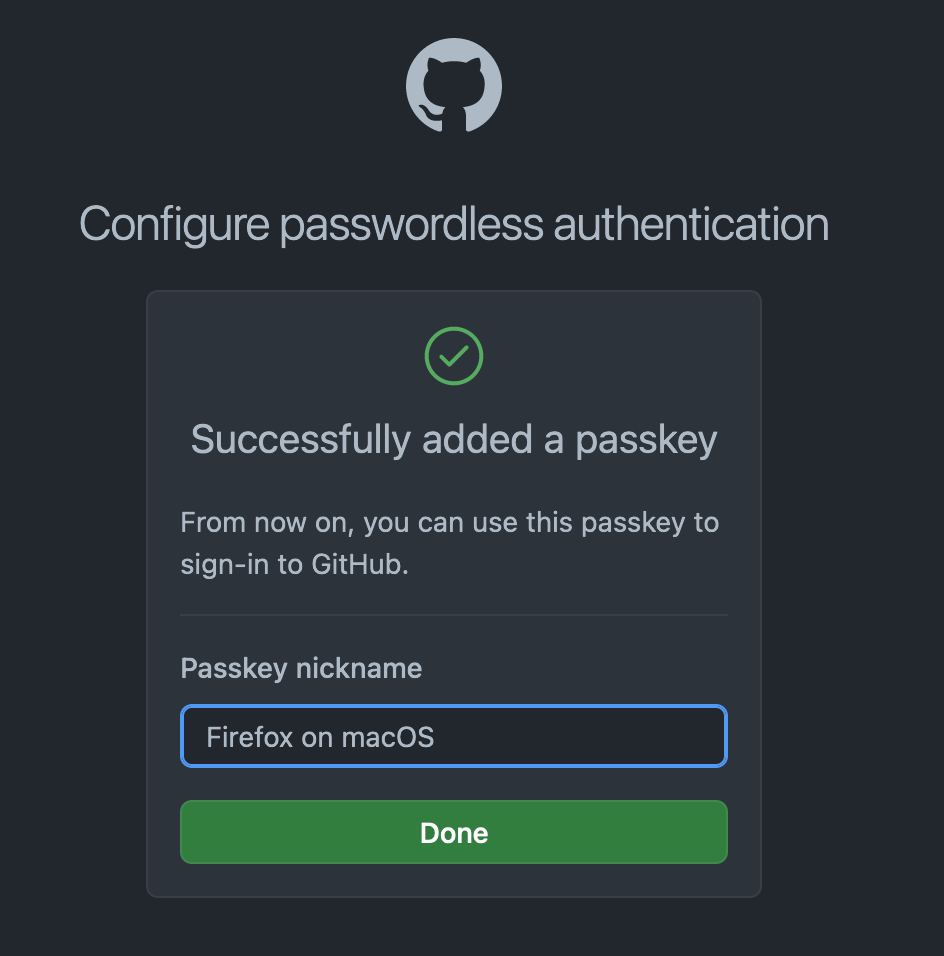
After registration, GitHub will ask a name for the passkey. This is only relevant for the server.
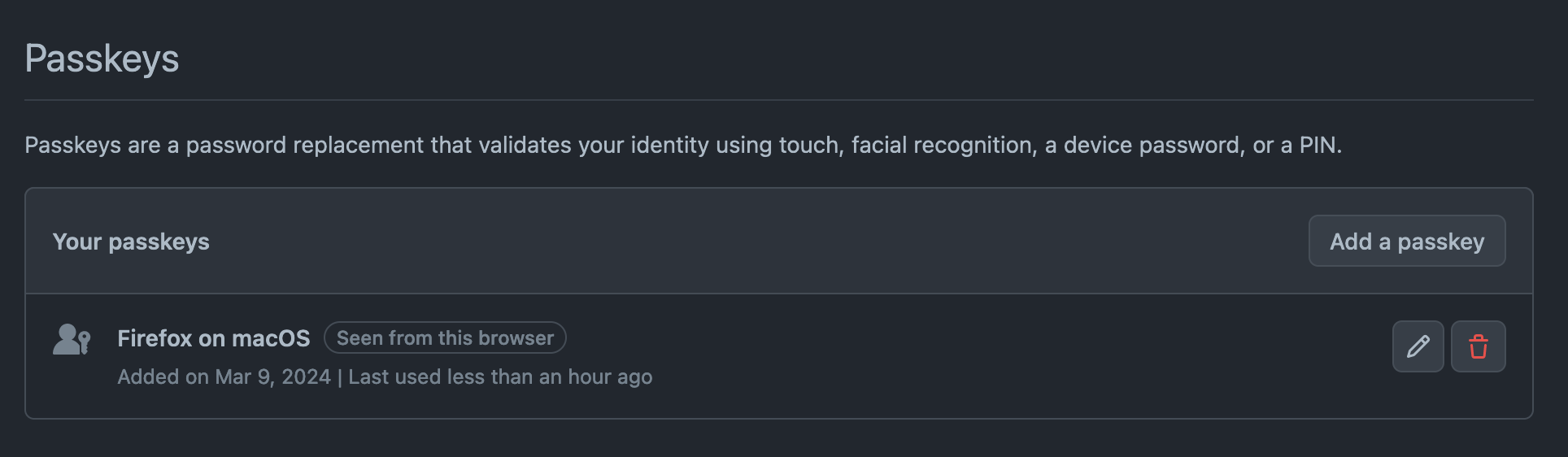
Now the passkey should be shown on the GitHub’s passkey section.
Login With a Passkey
The passkey created in the previous section can now be used to login to GitHub. Instead of logging in with normal credentials, choose Sign in with a passkey at the bottom of GitHub’s login page.
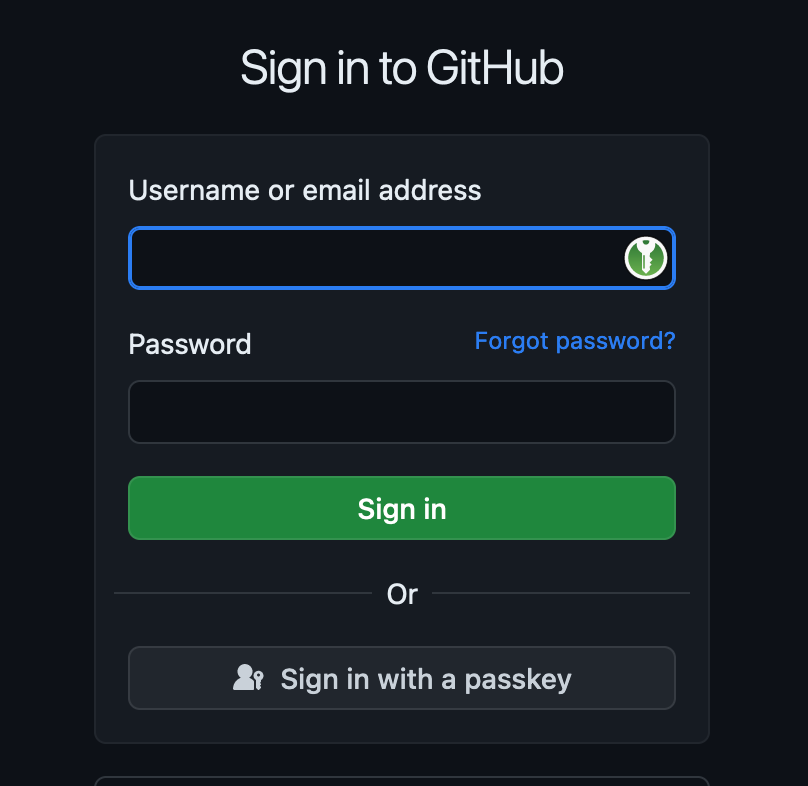
After clicking the button, OpenVireo Browser detects the passkeys authentication and OpenVireo shows the following dialog for confirmation.
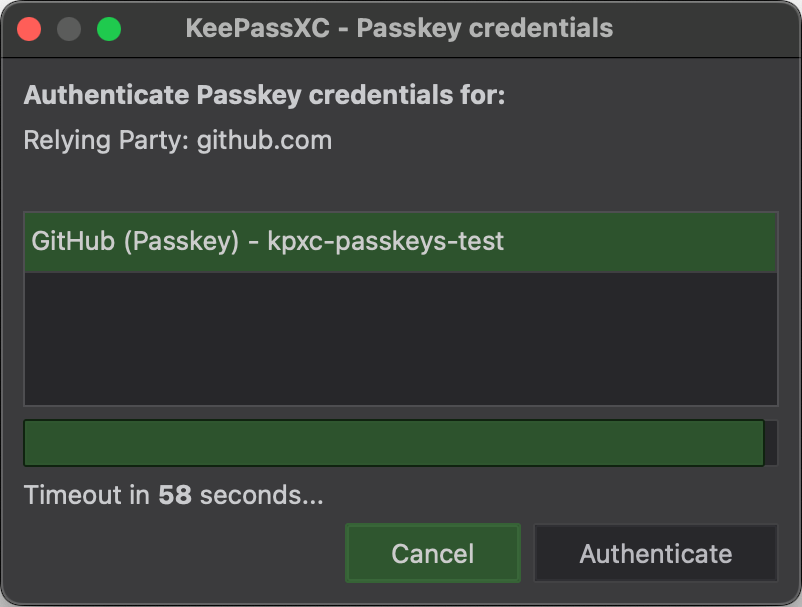
After confirmation user is now authenticated and logged into GitHub.
Advanced Usage
Multiple Passkeys for a Site
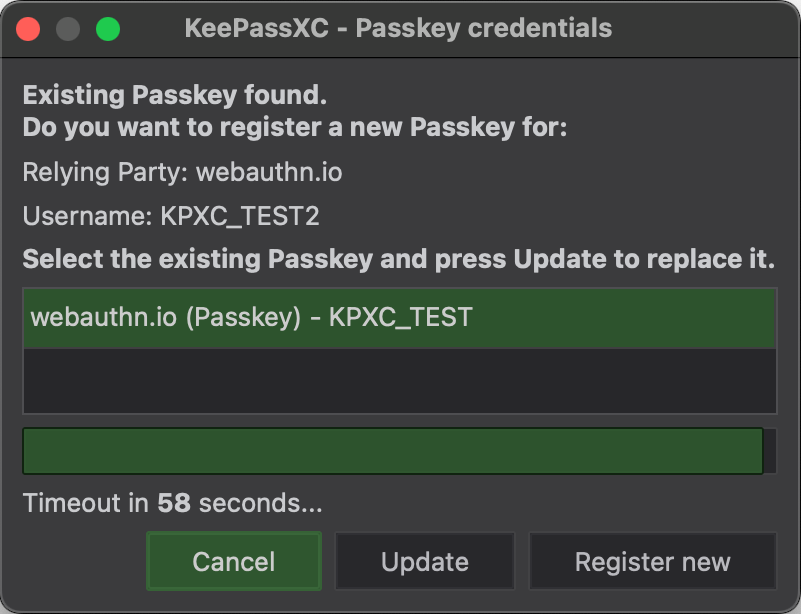
Multiple passkeys can be created for a single site. When registering a new passkey with a different username, OpenVireo shows an option to register a new passkey or update the previous one. Updating a passkey will override the existing entry, so this option should be only used when actually needed.
Exporting Passkeys
All passkeys in a database can be viewed and accessed from the Database → Passkeys… menu item. The page shows both Import and Export buttons for passkeys.
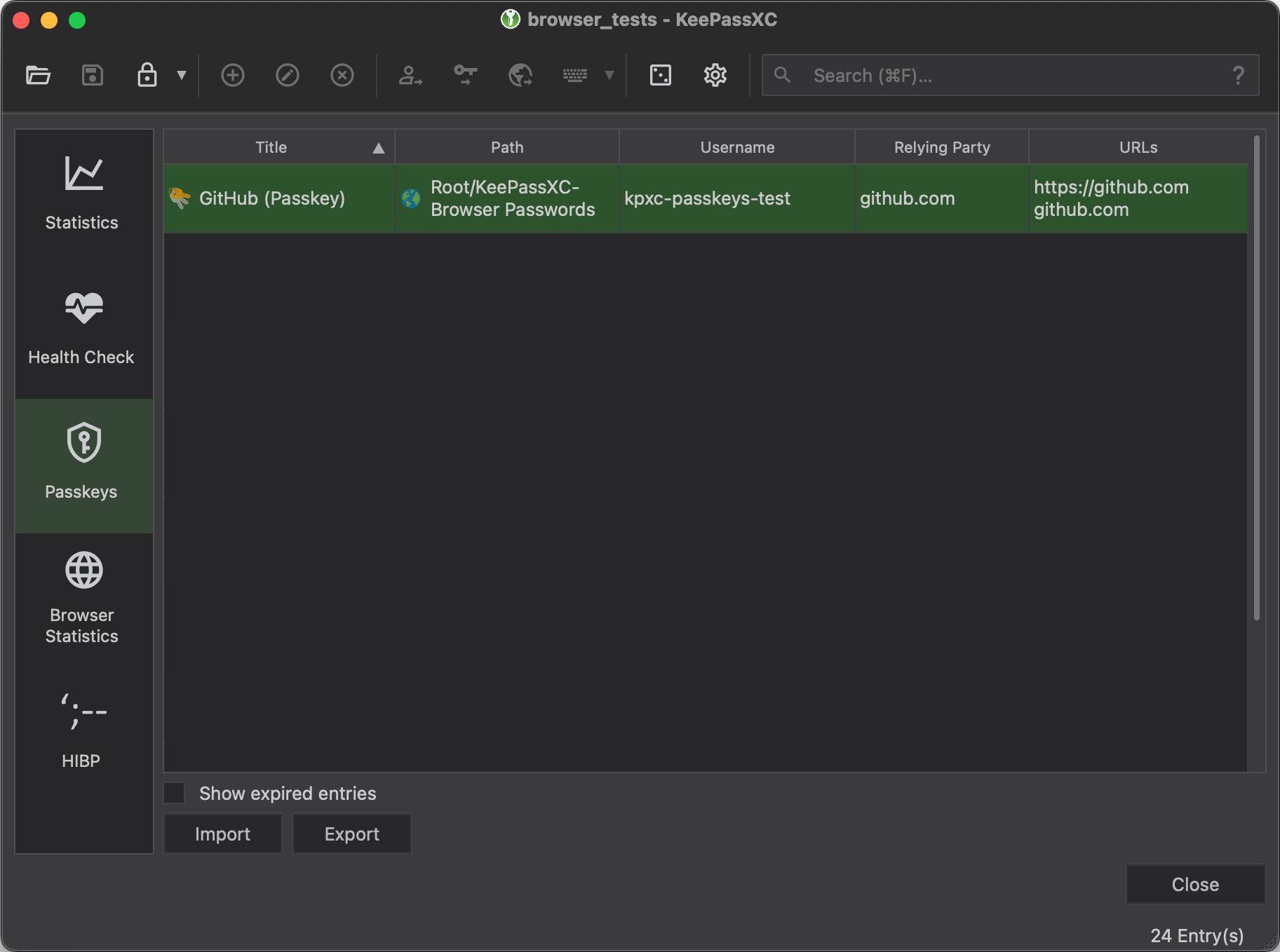
After selecting one or more entries, the following dialog is shown. One or multiple passkeys can be selected for export from the previously selected list of entries.
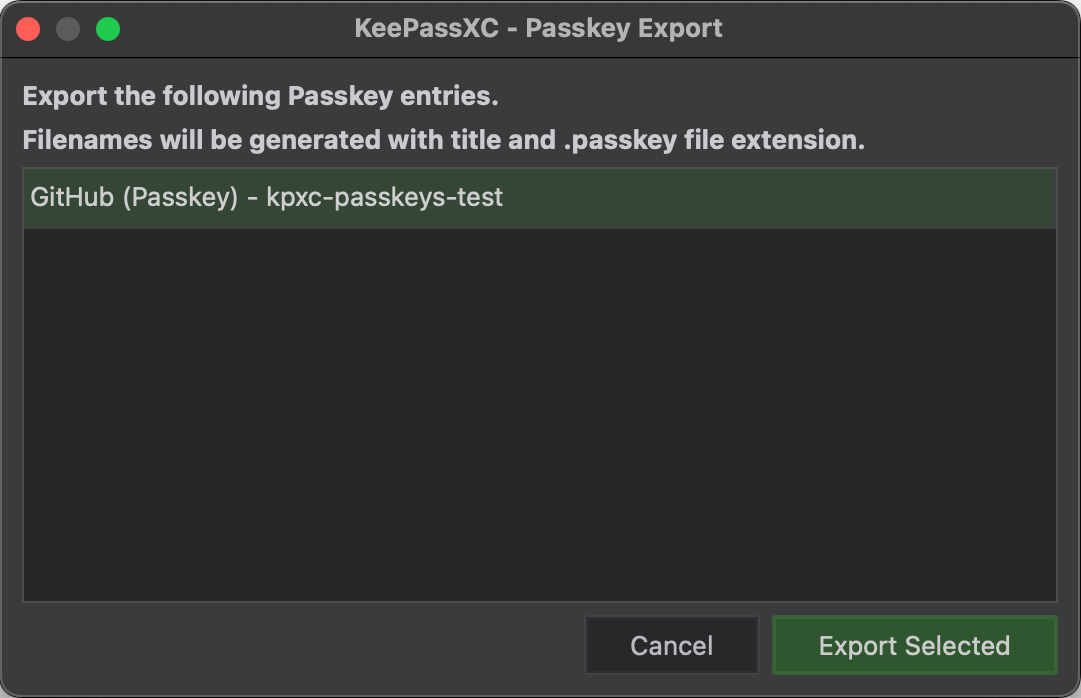
Exported passkeys are stored in JSON format using the .passkey file extension. The file includes all relevant information for importing a passkey to another database or saving a backup.
Importing Passkeys
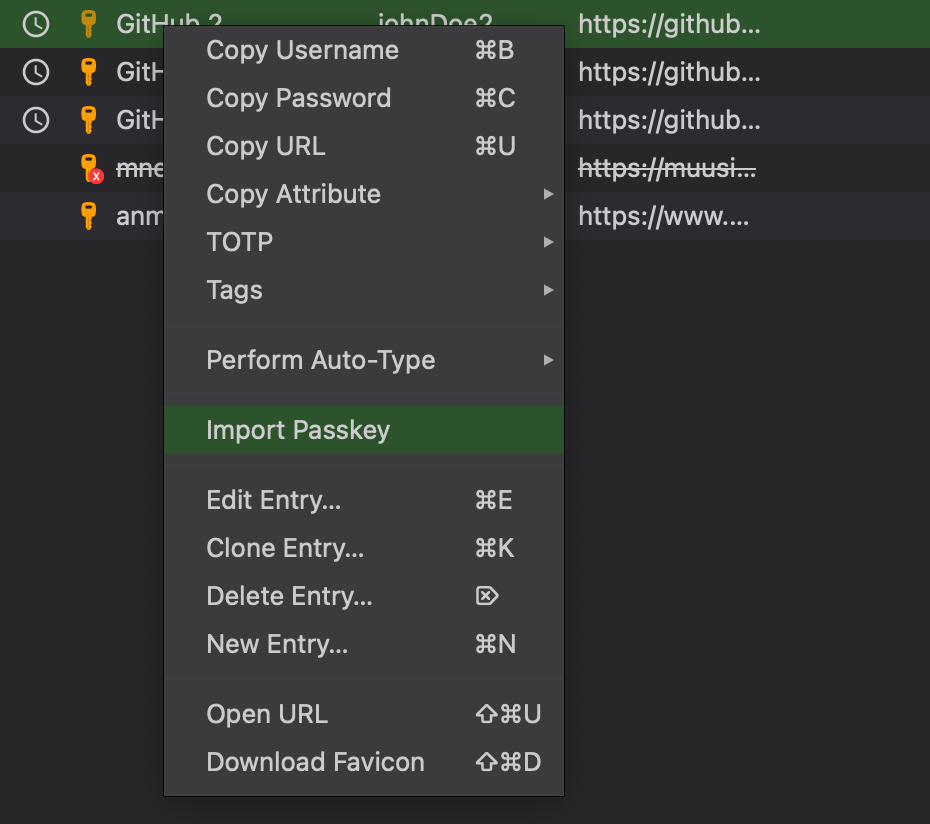
An exported passkey can be imported directly to a database or to an entry. To import directly, use the Database → Import Passkey menu item. When right-clicking an entry, a separate menu item for Import Passkey is shown. This is useful if user wants to import a previously created passkey to an existing entry.
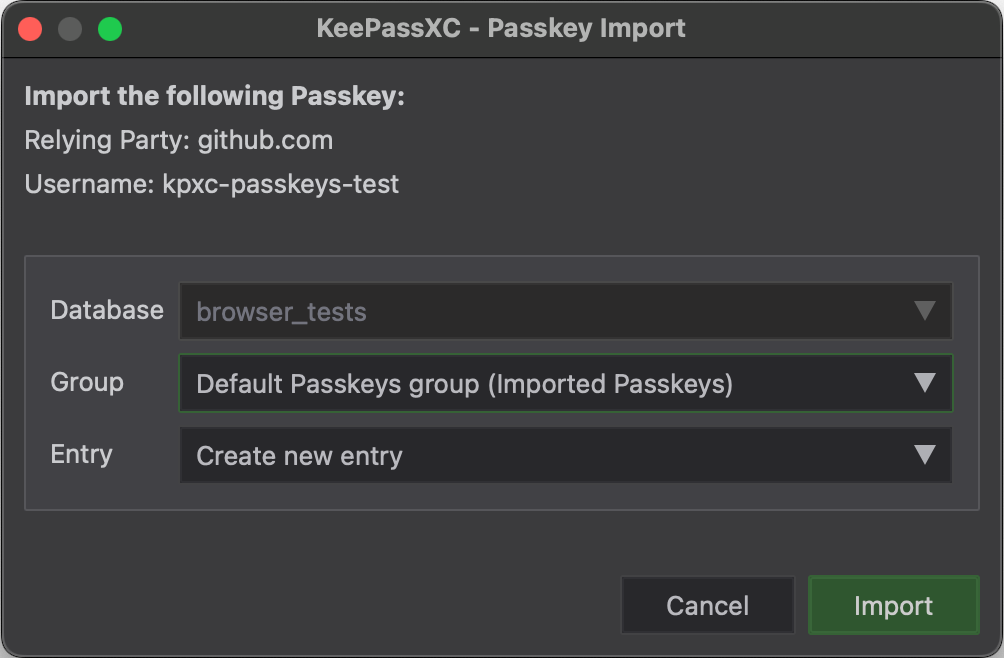
After selecting a passkey file to import, a separate dialog is shown where you can select which database, group, and entry to target. By default, the group is set to Imported Passkeys. The default action is to create a new entry that contains the imported passkey.
The User Guide guide covers OpenVireo, based on KeePassXC 2.8.0, last updated 23 October 2026. Found a mistake? Help improve the docs on GitHub.