
OpenVireo allows you to import external databases from the following options:
Comma Separated Values (.csv)
1Password Export (.1pux)
1Password Vault (.opvault)
Bitwarden (.json)
Proton Pass (.json)
KeePass 1 Database (.kdb)
Remote database (.kdbx), downloaded with a command
OpenVireo Sync Server (.kdbx)
To import any of these files, start OpenVireo and either click the Import File button on the welcome screen or use the menu Database > Import… to launch the Import Wizard.
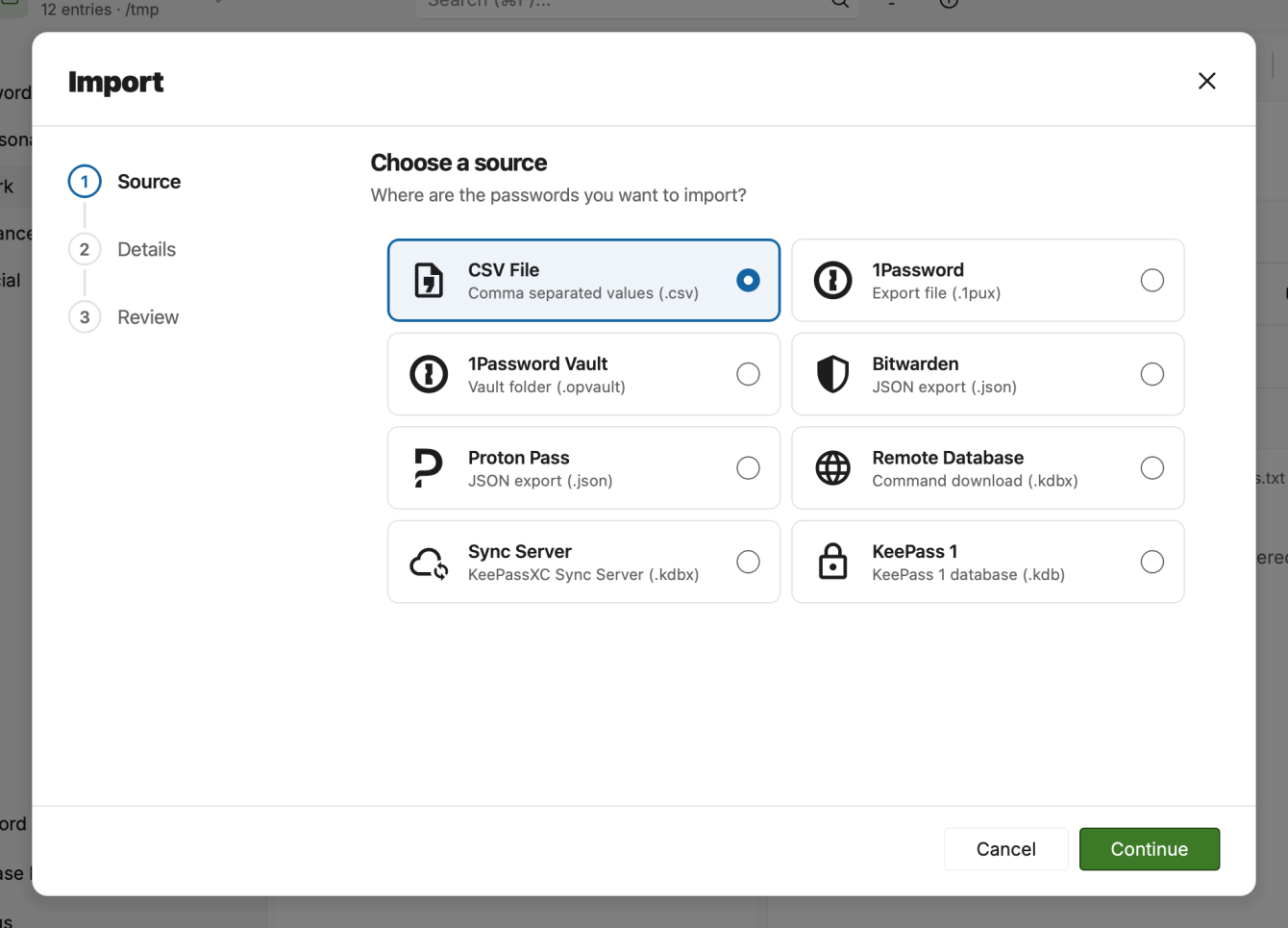
For each of the import options, you will be prompted to select the file to import and then provide credentials to unlock the file, if necessary. You can then choose to import the file into a new database or into an existing database that is already unlocked in OpenVireo.
Importing CSV File
Follow the steps above and click
Continue. The CSV import wizard will appear.On this dialog you can choose the various options for properly importing the data. Analyze the output in the preview at the bottom to determine the correct import settings. You may need to re-map the column associations to match the data in your CSV file.
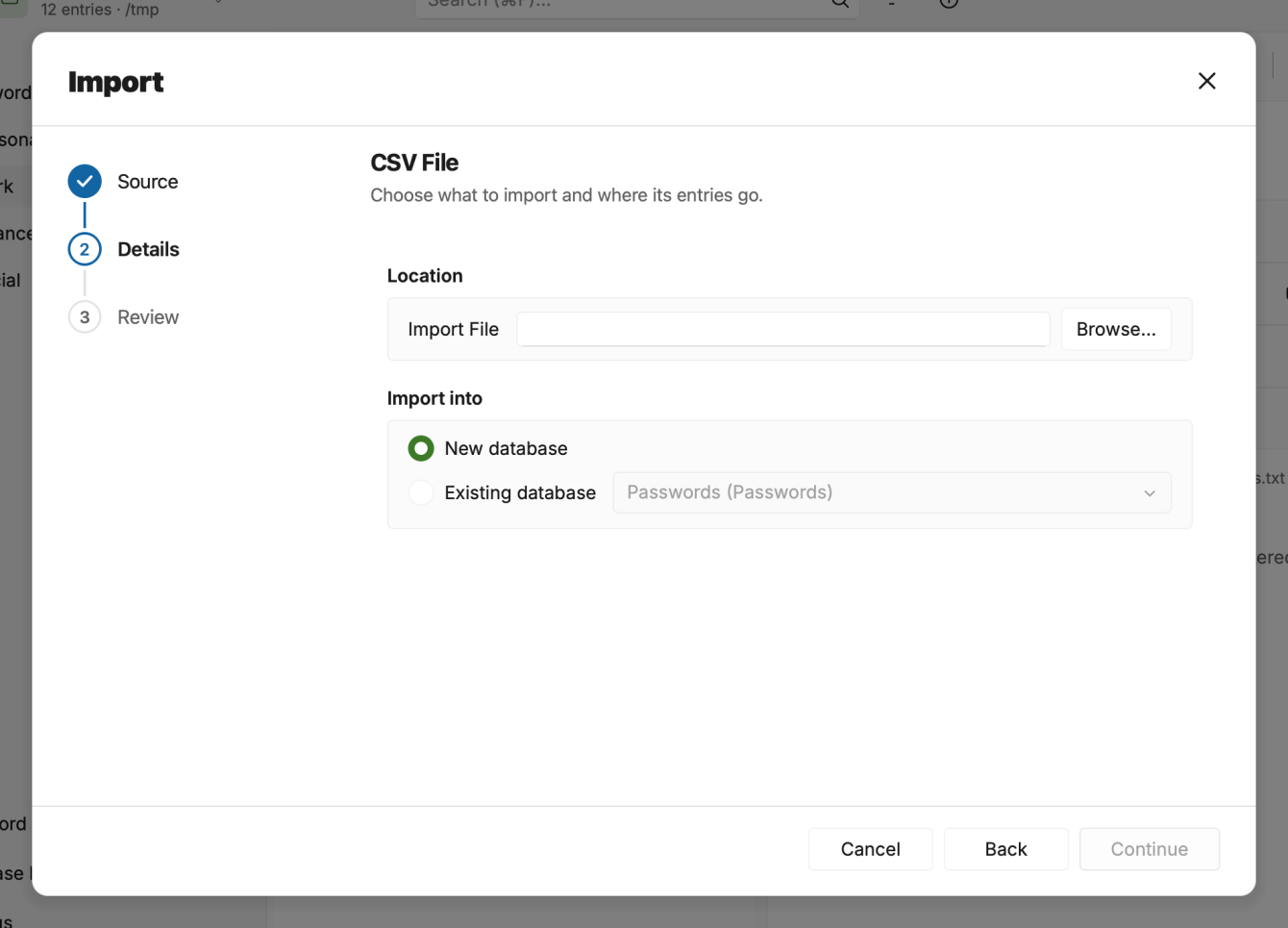
CSV Import Wizard Click
Doneto complete the import. If you chose to create a new database, the New Database dialog will appear. Otherwise your entries will be nested under the group you chose for the existing database.
Importing from Other Applications
OpenVireo allows you to import databases from various applications including 1Password (1PUX and OPVault), Bitwarden, and Proton Pass. Each import option involves selecting the file, providing necessary credentials (if required), and choosing to import into a new or existing database. Note that CSV, 1Password Export, Bitwarden, and Proton Pass files are unencrypted and should be securely deleted after import.
1Password Export
Open the Import Wizard as shown above. Select the 1Password Export option.
Click
Continueto unlock and preview the import. ClickDoneto complete the import.
1Password OPVault
Save your 1Password Vault locally to create an OPVault directory. Please see 1Password instructions on how to do this. Once an OPVault is created, perform the following steps:
Open the Import Wizard as shown above. Select the 1Password Vault option.
Enter the password for your vault and click
Continueto unlock and preview the import. ClickDoneto complete the import.
Bitwarden
Open the Import Wizard as shown above. Select the Bitwarden option.
Optionally provide a password to decrypt the Bitwarden export file. You should only need to do this if you have chosen the encrypted json export option within Bitwarden.
Click
Continueto unlock and preview the import. ClickDoneto complete the import.
Importing KeePass 1 Database
KeePass 1 database is an older format of the database created using a legacy version of KeePass. OpenVireo lets your import this older format of the database and you can seamlessly start using this database in your new OpenVireo application.
To import a KeePass 1 database file in OpenVireo, perform the following steps:
Open the Import Wizard as shown above. Select the KeePass1 Database option.
Enter the password for your database and optionally provide a key file if it was configured for your KeePass1 database.
Click
Continueto unlock and preview the import. ClickDoneto complete the import.
Importing Remote Database
Database files that are stored in a remote location can be imported or opened with OpenVireo if you provide a command to download the file from the remote location.
To import (or temporarily open) a remote database file in OpenVireo, perform the following steps:
Open the Import Wizard as shown above. Select the Remote Database option.
Enter a command to download the remote database. If necessary, enter input that needs to be passed to the command. The command and/or input need a
{TEMP_DATABASE}placeholder specified where the remote database is temporarily stored.Enter the password for your database and optionally provide a key file.
Click
Continueto unlock and preview the import. ClickDoneto complete the import.
Opening without importing a remote database is possible by selecting Temporary Database in the Import Into section of the wizard.
Importing from a Sync Server
A database stored on an OpenVireo Sync Server can be downloaded into OpenVireo to start syncing it on this device:
Open the Import Wizard as shown above. Select the Sync Server option.
Enter the server URL and your access token, or a pairing code from another of your devices (see Adding Another Device). Click
Loadto list the databases on the server and choose the Database ID.Enter the password for the database and optionally provide a key file.
Under Import Into, choose Local Copy to keep a copy on this device that keeps the server database’s credentials and is already set up to sync with the server, or import the entries into an existing or temporary database.
Click
Continueto unlock and preview the import. ClickDoneto complete the import.
See OpenVireo Sync Server for automatic sync and the other sync server features.
The User Guide guide covers OpenVireo, based on KeePassXC 2.8.0, last updated 23 October 2026. Found a mistake? Help improve the docs on GitHub.