
At any point of time, you can change the settings for your database. To make changes to the general settings, perform the following steps:
Navigate to Database → Database settings, or open the database picker and select Database Settings…. The following screen appears:
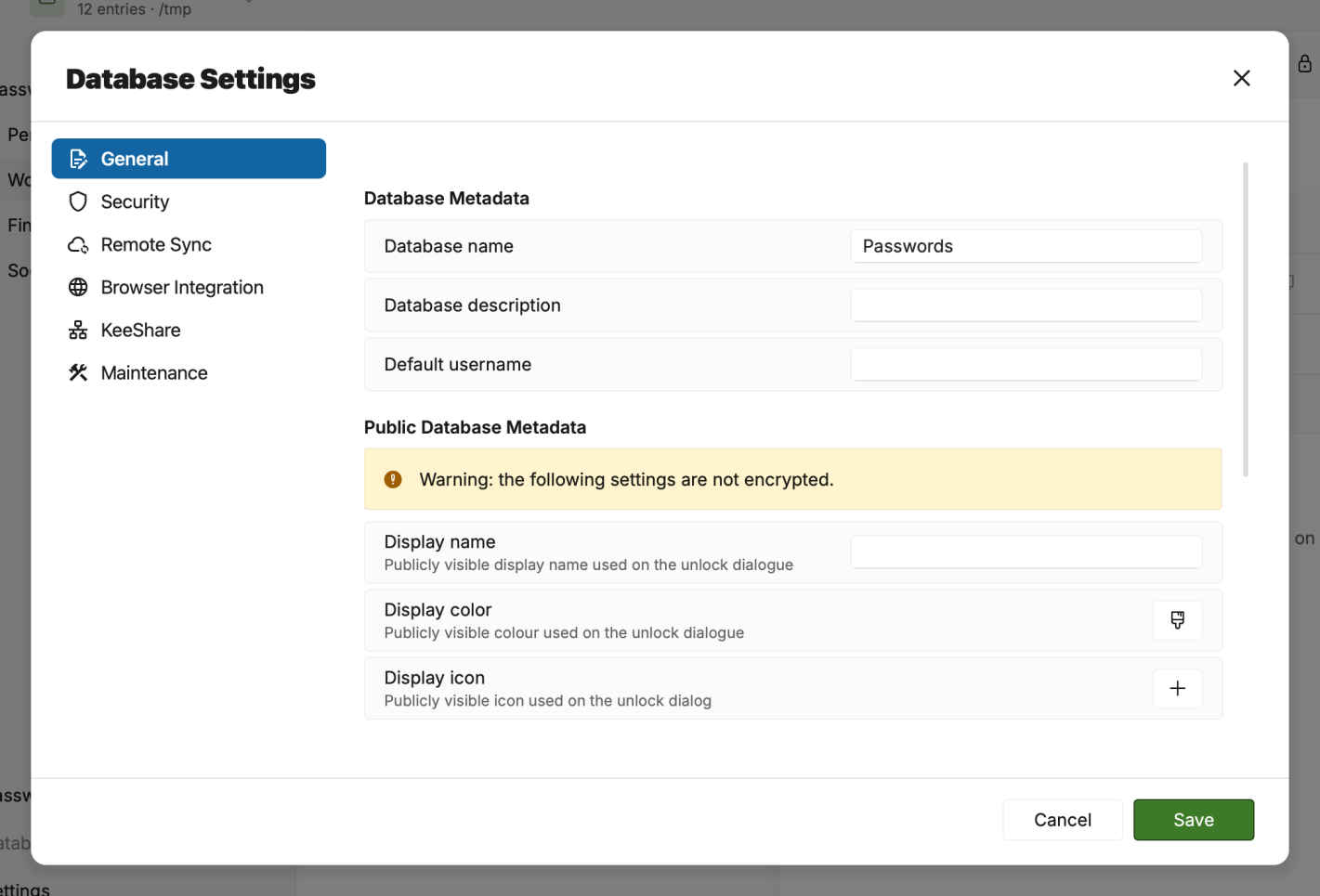
Database settings Click the General button in the left-hand menu bar to access the following settings:
Database name: This is the default identifier for your database and is shown in the database picker and title bar (when active). You can change this name as desired.
Database description: Provide some meaningful description for your database.
Default username: Provide a default username for all new entries that you create in this database.
Public Database Metadata: Here you can set a public (unencrypted) name, icon, and color for your database. This is used on the database unlock screen to help distinguish multiple databases from each other.
Max history items: This is the maximum number of history items that are stored for each entry. When you set this to 0, no history will be saved. Set this value to a low value to prevent the database from getting too large (we recommend no more than 10).
Max. history size: When the history of an entry gets above this size, it is truncated. For example, this happens when entries have large attachments. Set this value small to prevent the database from getting too large (we recommend 6 MiB).
Use recycle bin: Select this check-box if you want deleted entries to move to the recycle bin instead of being permanently removed. The recycle bin will be created if it does not already exist after your first deletion. To delete entries permanently, you must empty the recycle bin manually.
Enable compression: OpenVireo databases can be compressed before being encrypted. Compression reduces the size of the database and does not have any appreciable affect on speed. It is recommended to always save databases with compression.
Autosave delay: Customize the automatic database save operation by delaying it for a set time since the last change. By default, this option is disabled for fast saving, but can be useful for large databases to avoid delays after each change.
Click the Security button in the left-hand menu bar to change your database credentials and change encryption settings.
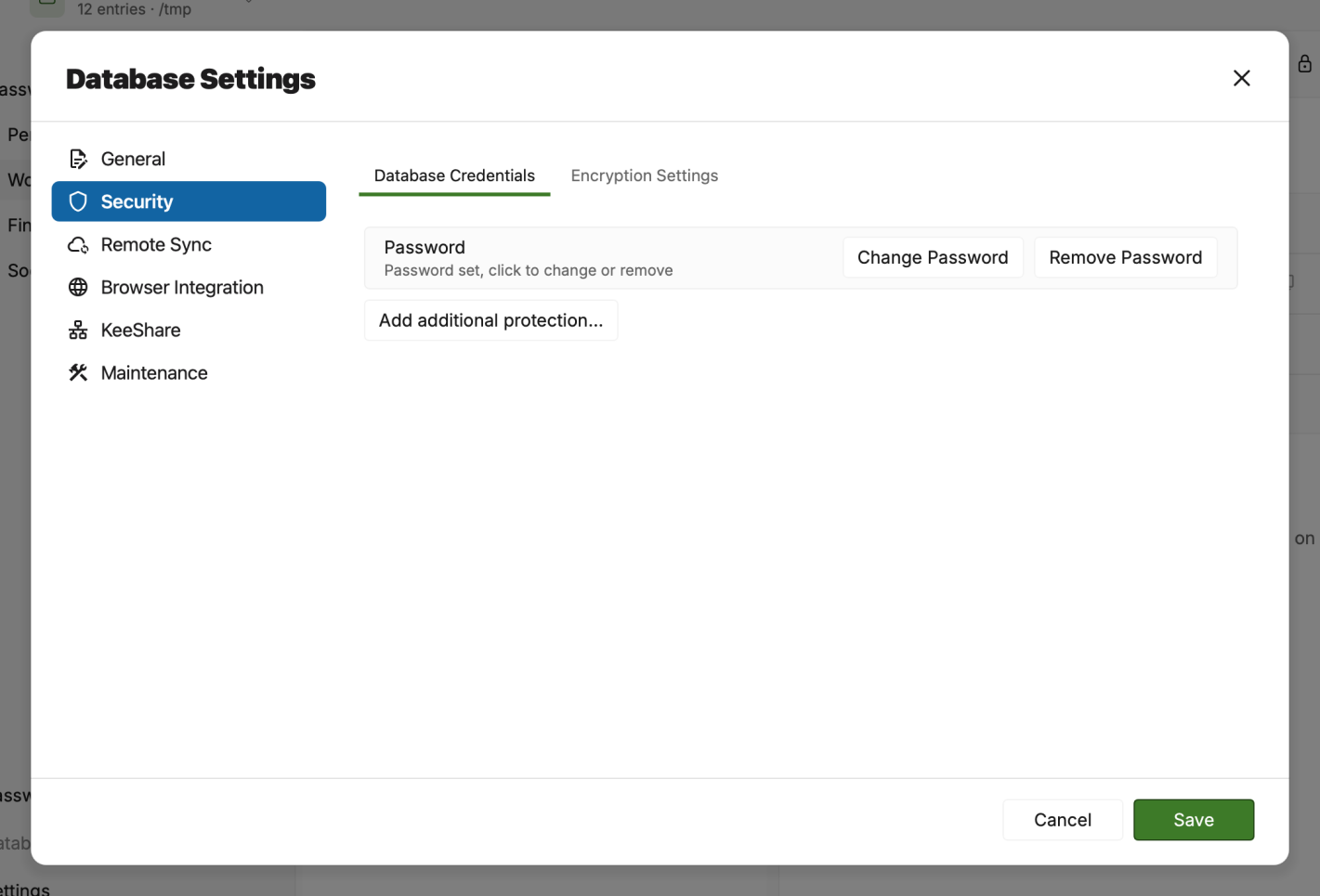
Database security Here you can change your database password or add/remove additional credentials to protect your database. OpenVireo supports adding a randomly generated, static key file and hardware keys such as YubiKey and OnlyKey. To add a key file, click Add Key File and either browse for an existing file or generate a new one (A). To add a hardware key, click Add YubiKey Challenge-Response, plug in your hardware key, then click refresh (B).
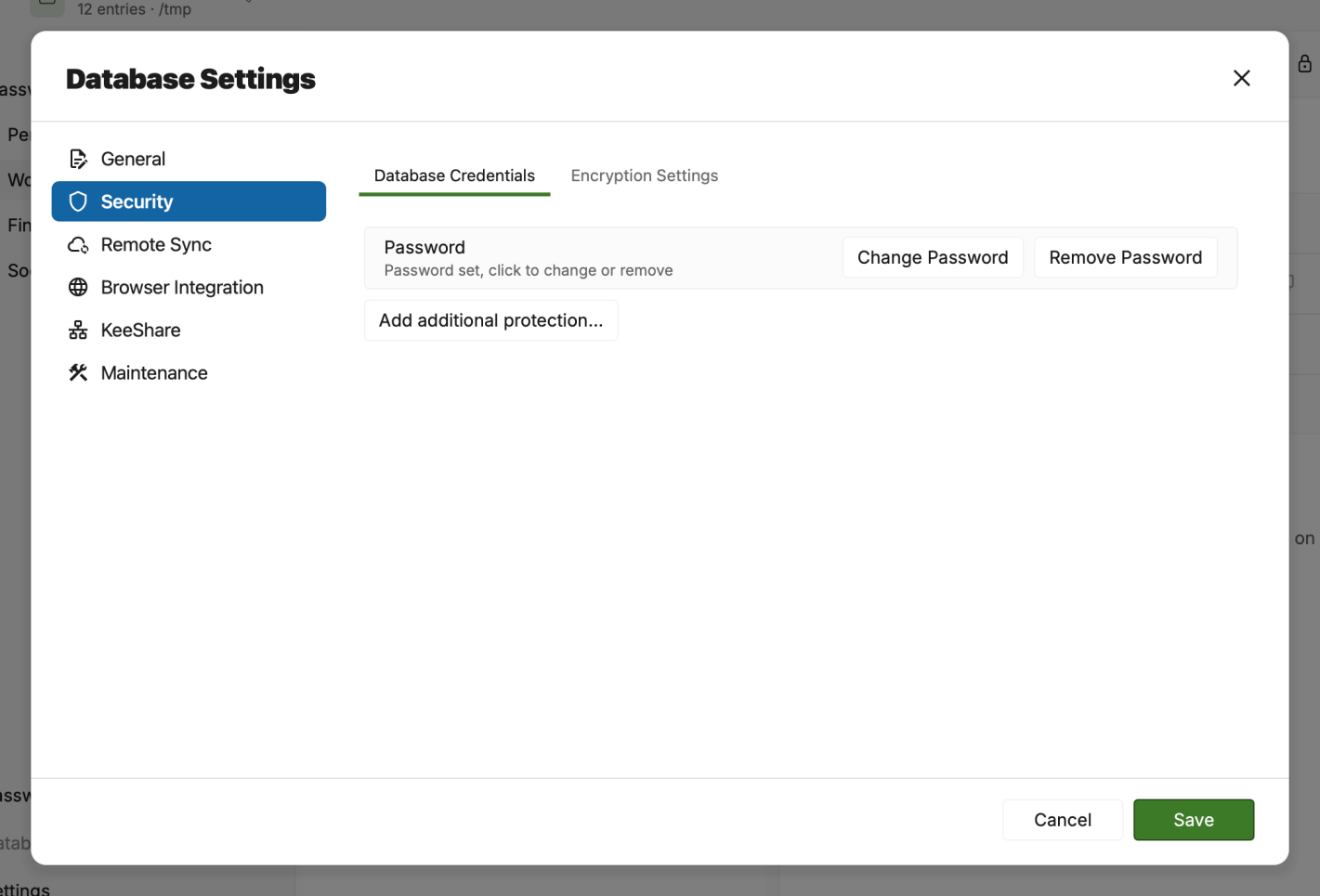
Database credentials Encryption settings allow you to change the average time it takes to encrypt and decrypt the database. The longer time that is chosen, the harder it will be to brute force attack your database. We recommend a setting of one second.
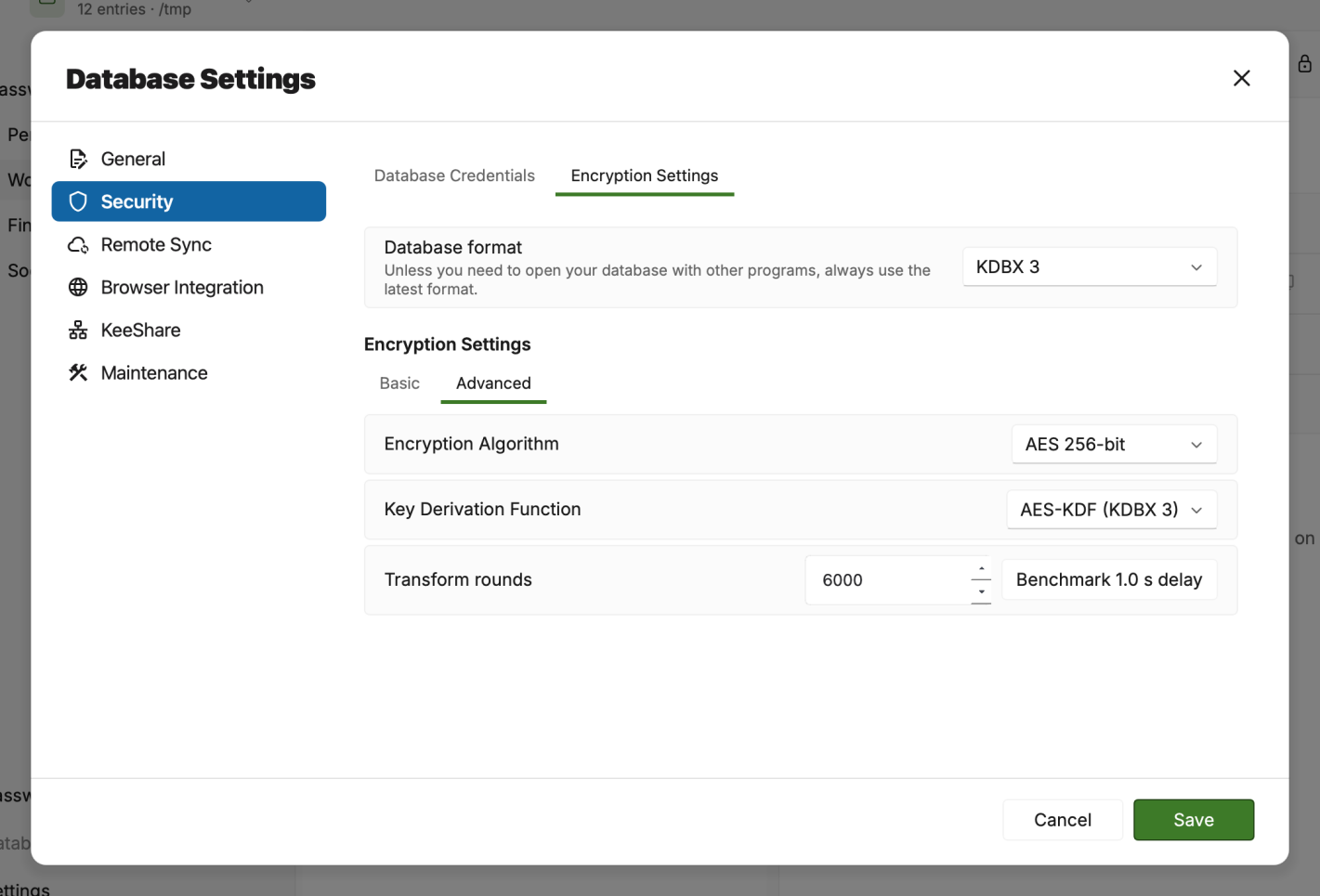
Database encryption Advanced encryption settings can be accessed by clicking the Advanced Settings checkbox in the lower left-hand corner. These settings are only meant for people who know what they mean. We do not recommend touching these settings.
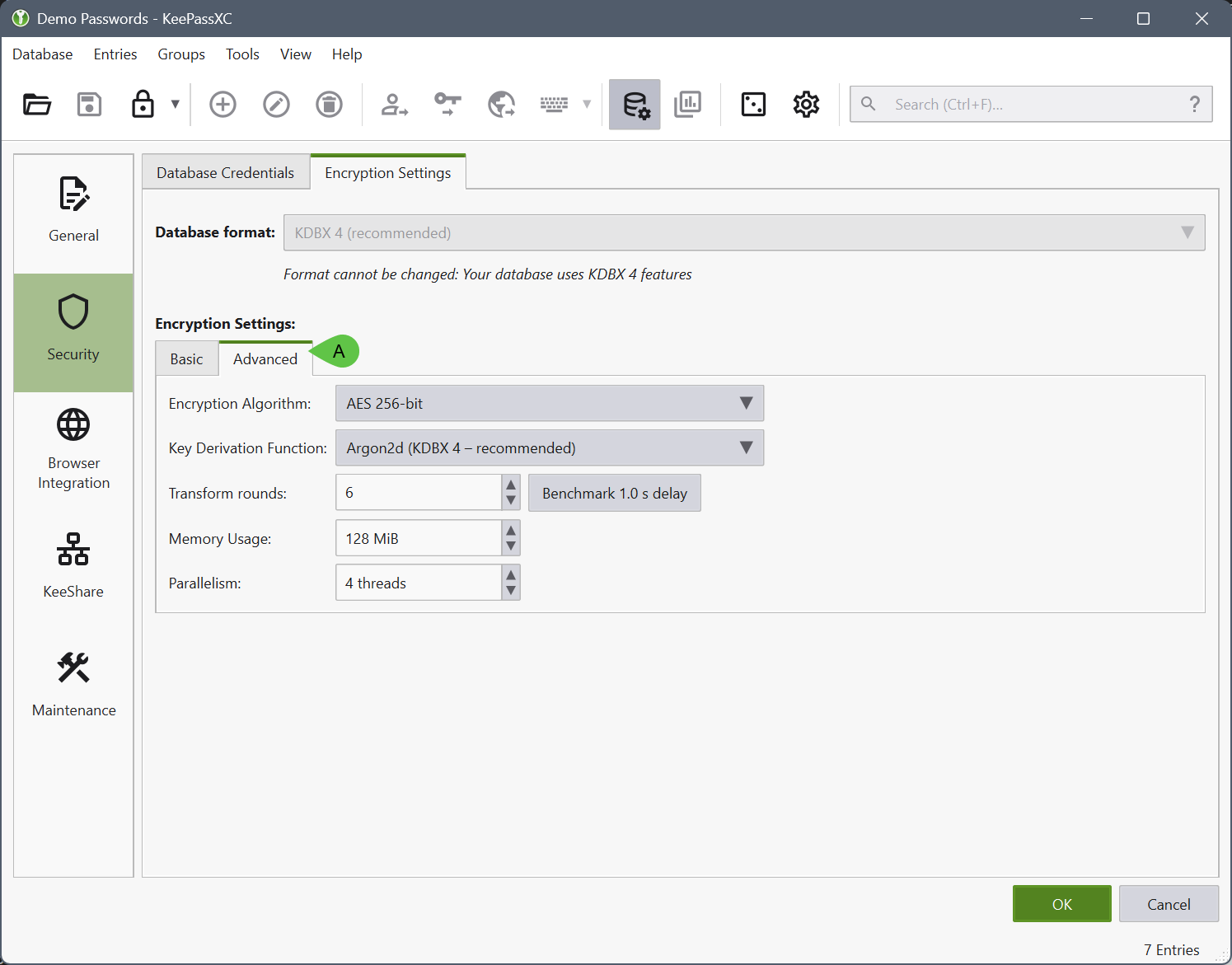
Database encryption advanced settings The following key derivation functions are supported:
AES-KDF (KDBX 4 and KDBX 3.1): This key derivation function is based on iterating AES. Users can change the number of iterations. The more iterations, the harder are dictionary and guessing attacks, but also database loading/saving takes more time (linearly). KDBX 3.1 only supports AES-KDF; any other key derivation function, like for instance Argon2, requires KDBX 4.
Argon2 (KDBX 4 – recommended): KDBX 4, the Argon2 key derivation function can be used for transforming the composite master key (as protection against dictionary attacks). The main advantage of Argon2 over AES-KDF is that it provides a better resistance against GPU/ASIC attacks (due to being a memory-hard function). The number of iterations scales linearly with the required time. By increasing the memory parameter, GPU/ASIC attacks become harder and the required time increases. The parallelism parameter can be used to specify how many threads should be used. We recommend using Argon2id to prevent against timing-based attacks. Argon2d offers maximum compatibility with other KeePass-based apps, the default settings provide sufficient protection against any known attacks.
Database Maintenance
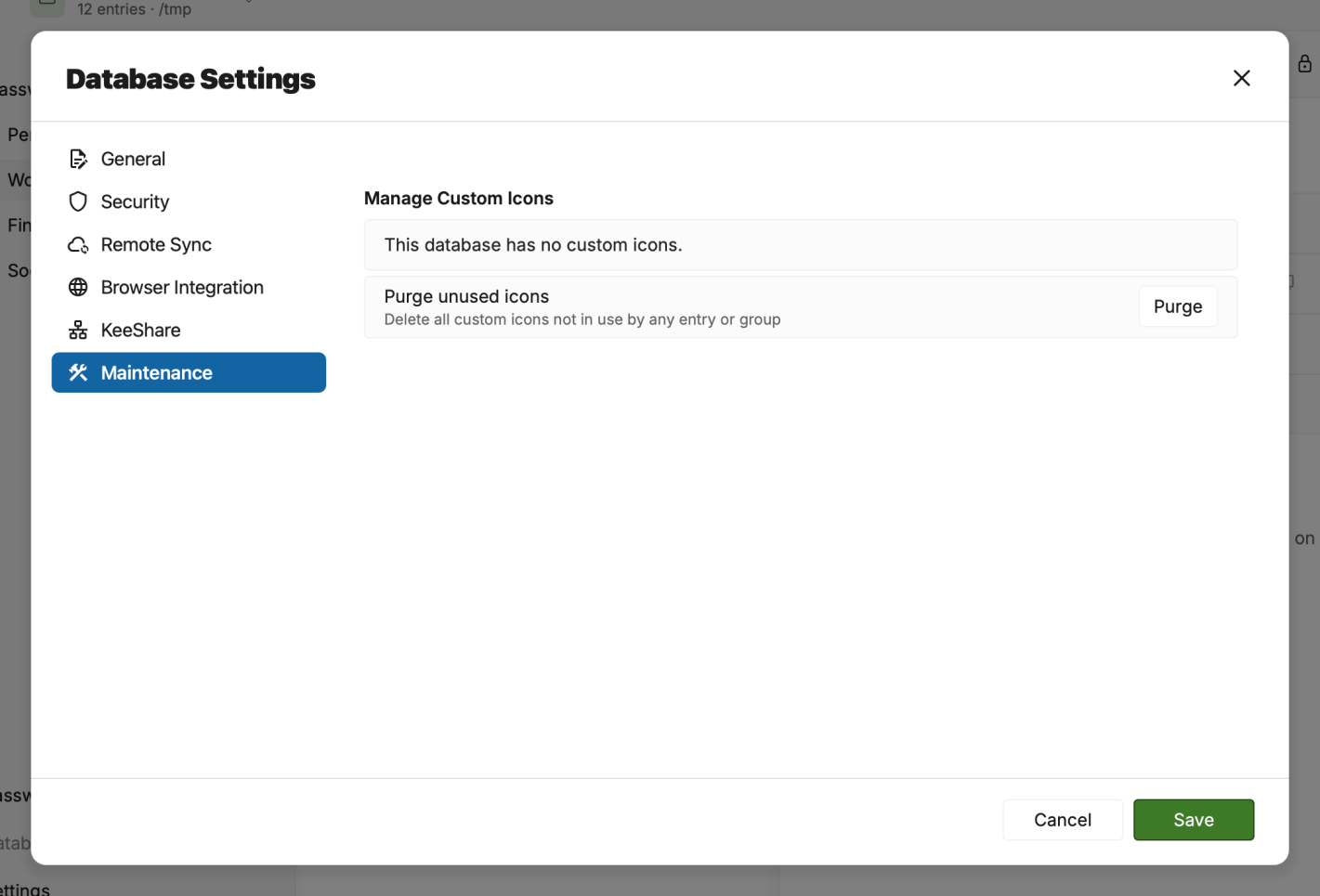
OpenVireo offers some maintenance features that can be applied to clean up your database. Navigate to Database → Database settings then click on Maintenance on the left hand panel. The following screen appears. On this screen you can delete multiple icons at once and purge any unused icons in your database.
The User Guide guide covers OpenVireo, based on KeePassXC 2.8.0, last updated 23 October 2026. Found a mistake? Help improve the docs on GitHub.