
The Auto-Type feature acts like a virtual keyboard to populate data from your entries directly into the corresponding websites or applications that you use. You can use the Auto-Type feature on a global level or entry level. Each entry can be configured to be associated with a particular window title and multiple Auto-Type sequences can be pre-defined and selected upon use.
Configure Global Auto-Type
You can define a global Auto-Type hotkey that starts the Auto-Type process. To configure the hotkey, perform the following steps:
Navigate to Tools → Settings → Auto-Type (1). Click into the Global Auto-Type shortcut box and press the desired key combination that will trigger the Auto-Type process (2).
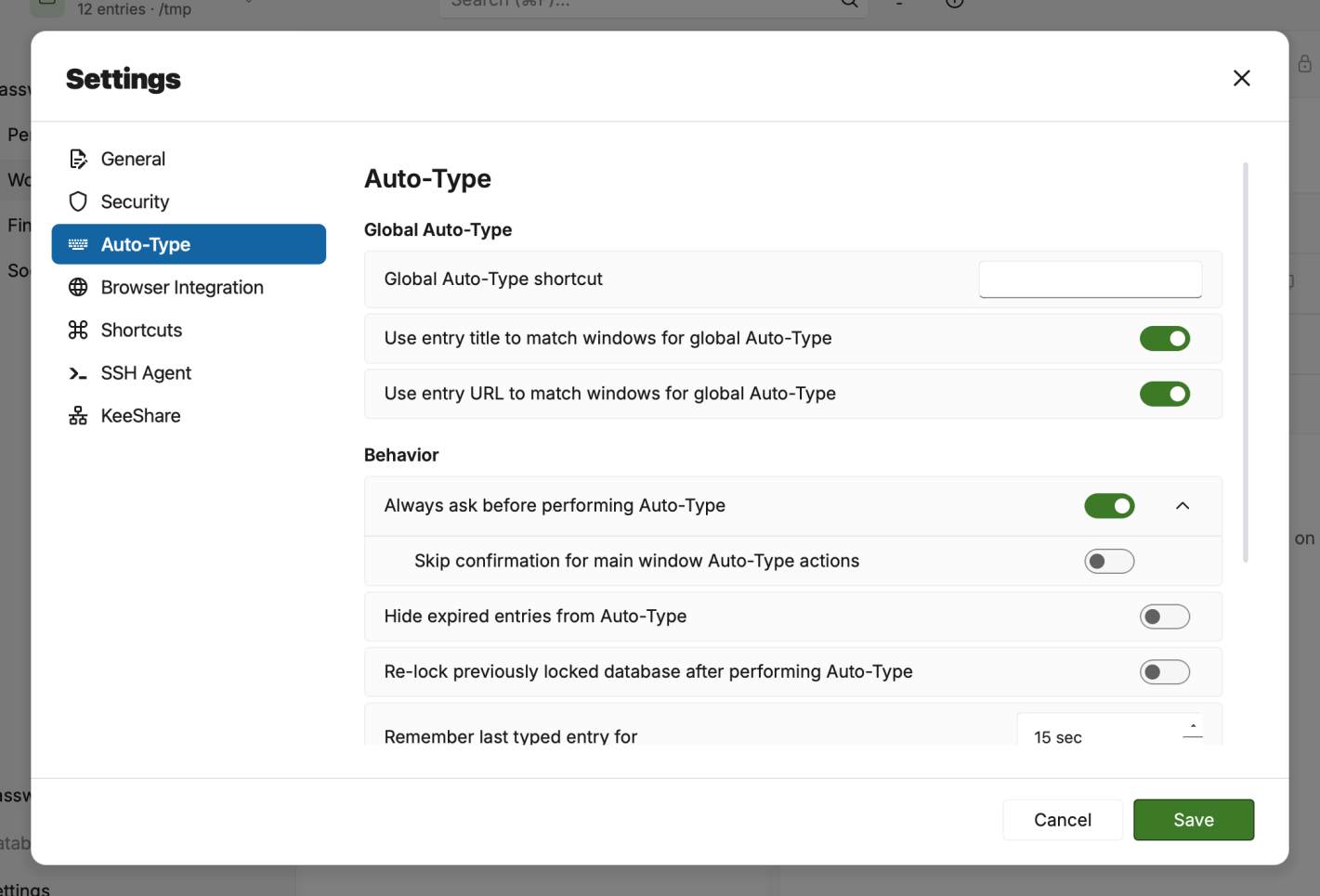
You can configure additional Auto-Type settings in this window such as start delay, inter-key typing delay, and matching options. If Auto-Type is not working well for you, try adjusting the default delays.
You can also set the time to remember the last used entry between presses of the global Auto-Type hotkey. This is useful for typing parts of a sequence during complex login workflows without having to find the specific each time.
Configure Auto-Type Sequences
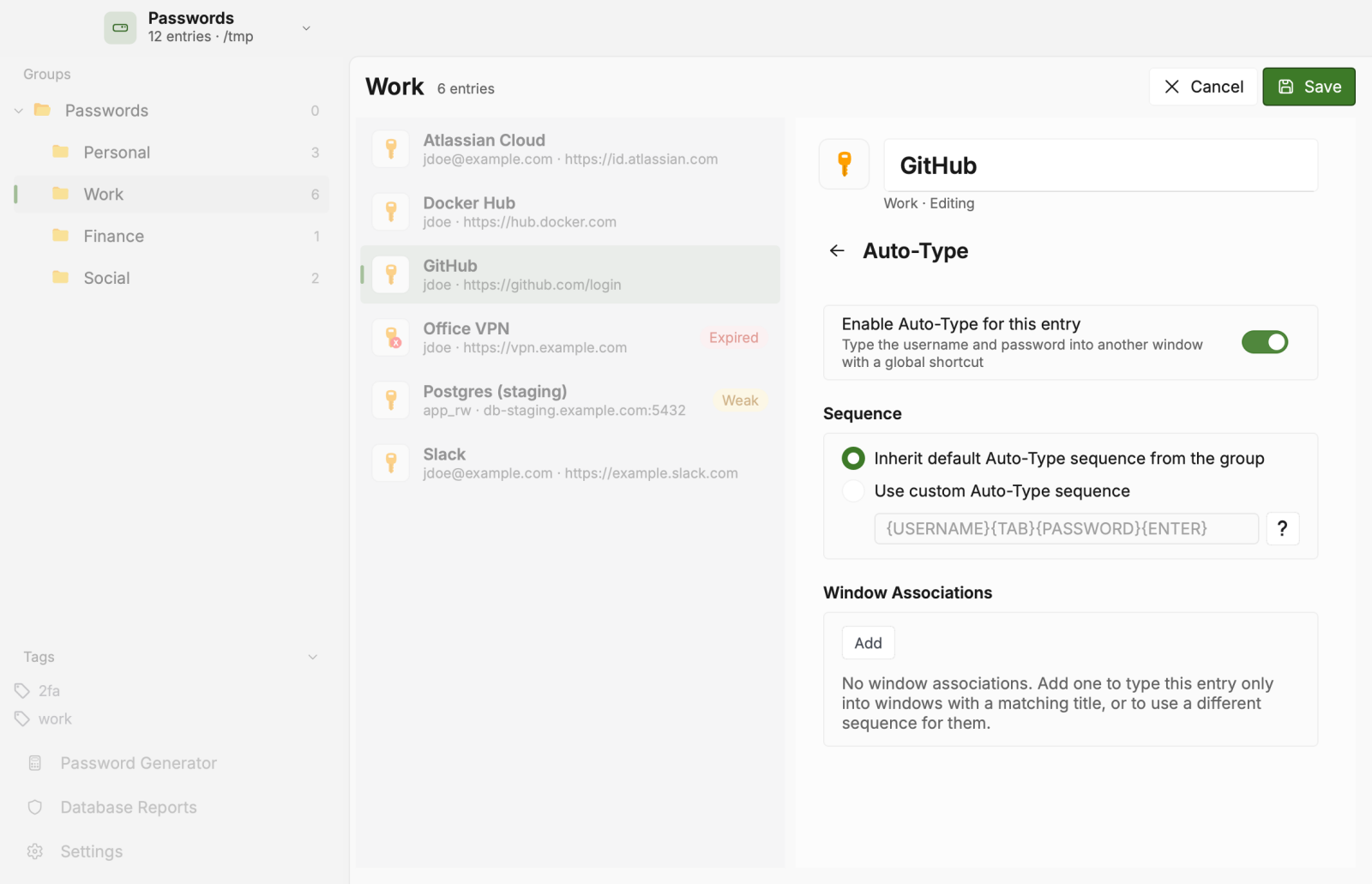
Each entry in your database can have multiple Auto-Type sequences associated with various window titles. Simulated key presses can be sent to any other currently open window of your choice (web browser windows, login dialogs boxes, and so on). When the Global Auto-Type hotkey is pressed, OpenVireo will search your database for entries matching the current selected window title.
To configure Auto-Type sequences for your entries, perform the following steps:
Navigate to the entries list and open the desired entry for editing. Click the Auto-Type item from the left-hand menu bar (1). Press the + button (2) to add a new sequence entry. Select the desired window using the drop-down menu, or simply type a window title in the box (3).
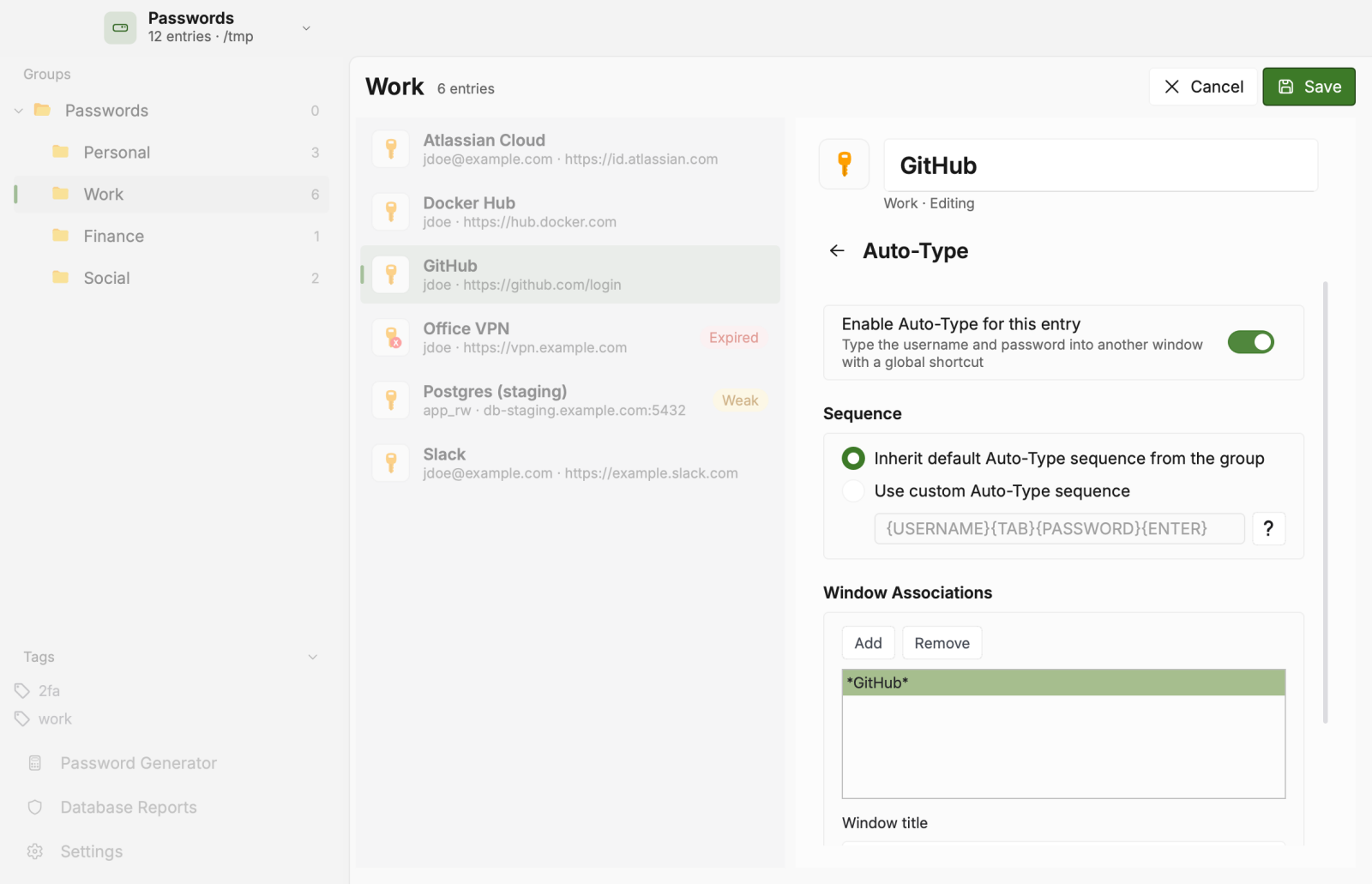
Auto-Type entry sequences (Optional) Define a custom Auto-Type sequence for each window title match by selecting the Use specific sequence for this association checkbox. Sequence action codes and field placeholders are detailed in the following table. Beyond the most important ones detailed below, there are additional action codes and placeholders available: Auto-Type Actions Reference and Entry Placeholders Reference. Action codes and placeholders are not case sensitive.
Placeholder Description {TITLE}
Entry Title
{USERNAME}
Username
{PASSWORD}
Password
{URL}
URL
{NOTES}
Notes
{TOTP}
Current TOTP value (if configured)
{S:ATTRIBUTE_NAME}
Value for the given attribute name (e.g., {S:Address})
Action Code Description {TAB}, {ENTER}, {SPACE}, {INSERT}, {DELETE}, {HOME}, {END}, {PGUP}, {PGDN}, {BACKSPACE}, {CAPSLOCK}, {ESC}
Press the corresponding keyboard key
{UP}, {DOWN}, {LEFT}, {RIGHT}
Press the corresponding arrow key
{LEFTBRACE}, {RIGHTBRACE}
Press { or }, respectively
{<KEY> X}
Repeat <KEY> X times (e.g., {SPACE 5} inserts five spaces)
{DELAY=X}
Set delay between key presses to X milliseconds
{DELAY X}
Pause typing for X milliseconds
{CLEARFIELD}
Clear the input field
{PICKCHARS}
Pick specific password characters from a dialog
{MODE=VIRTUAL}
(Experimental) Use virtual key presses on Windows, useful for virtual machines
Modifier Description +
SHIFT
^
CTRL
%
ALT
#
WIN/CMD
Performing Global Auto-Type
The global Auto-Type keyboard shortcut is used when you have focus on the window you want to type into. To make use of this feature, you must have previously configured an Auto-Type hotkey.
When you press the global Auto-Type hotkey, OpenVireo searches all unlocked databases for entries that match the focused window title. The selection dialog will appear when there are no matches, multiple matches, the active window title is not available, or "Always ask before performing Auto-Type" is enabled. The selection is remembered for a short while to help retype with the same entry in quick succession.
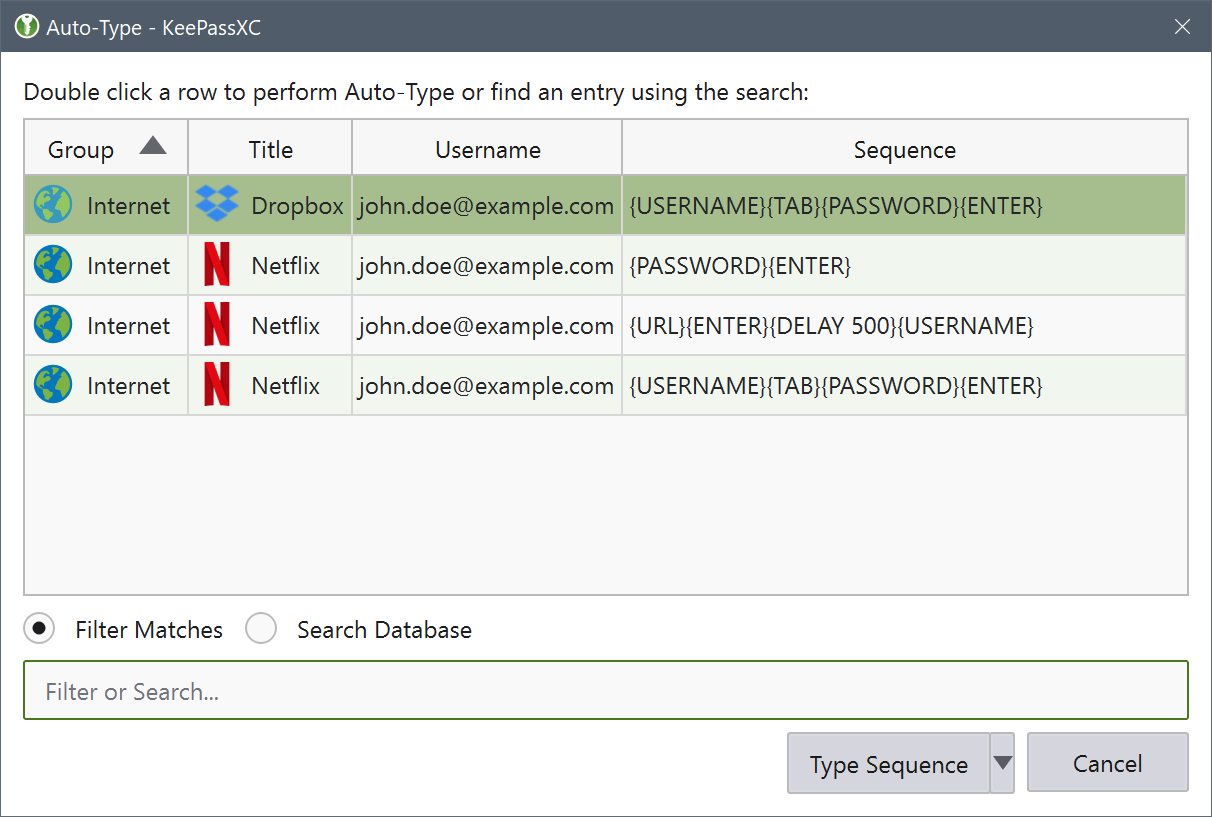
Perform the selected Auto-Type sequence by double clicking the desired row or pressing Enter. Press the up and down arrows to navigate the list. Sequences can be filtered through the text edit field.
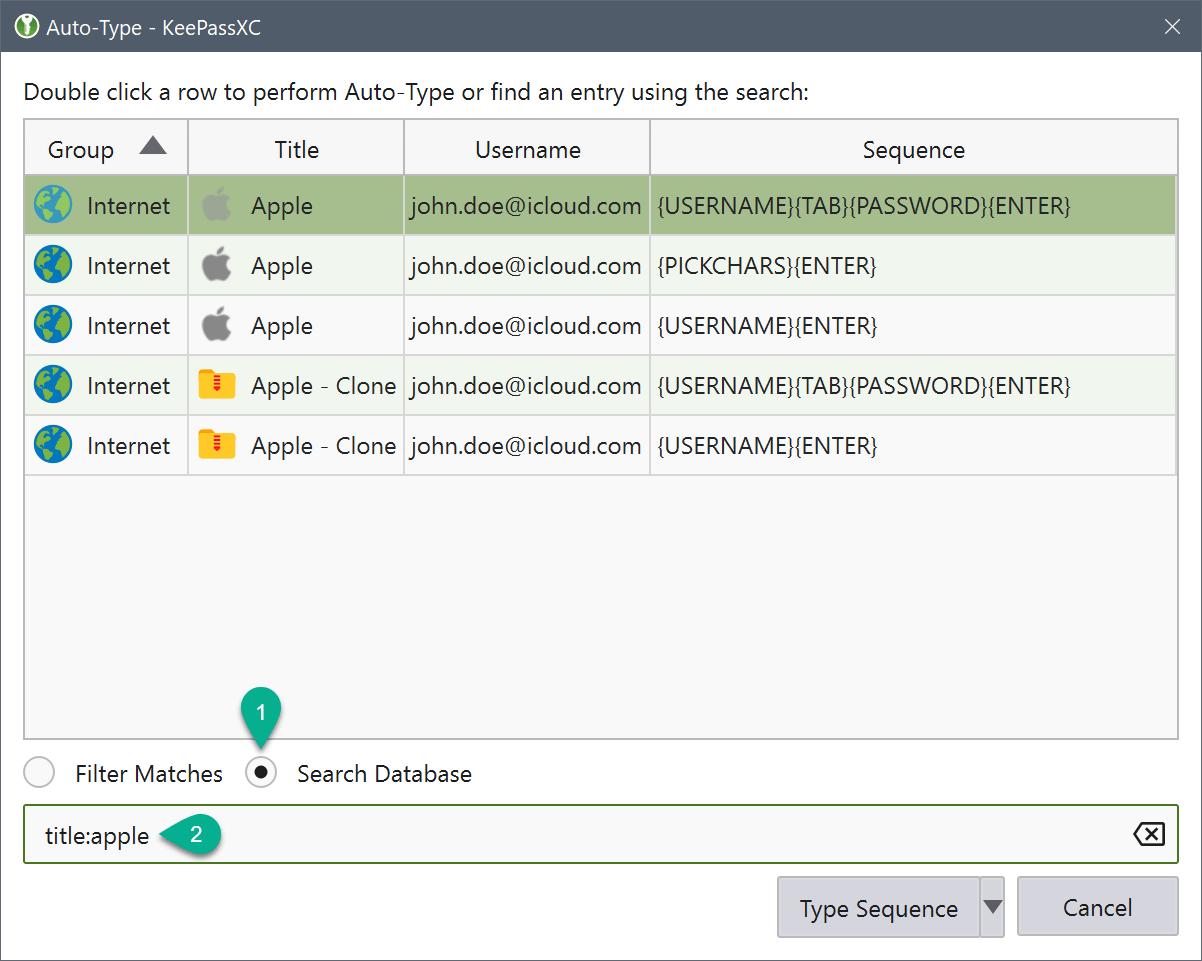
Search the unlocked databases by activating Search Database radio button. Use the text edit field to issue search queries using the same syntax as database searching.
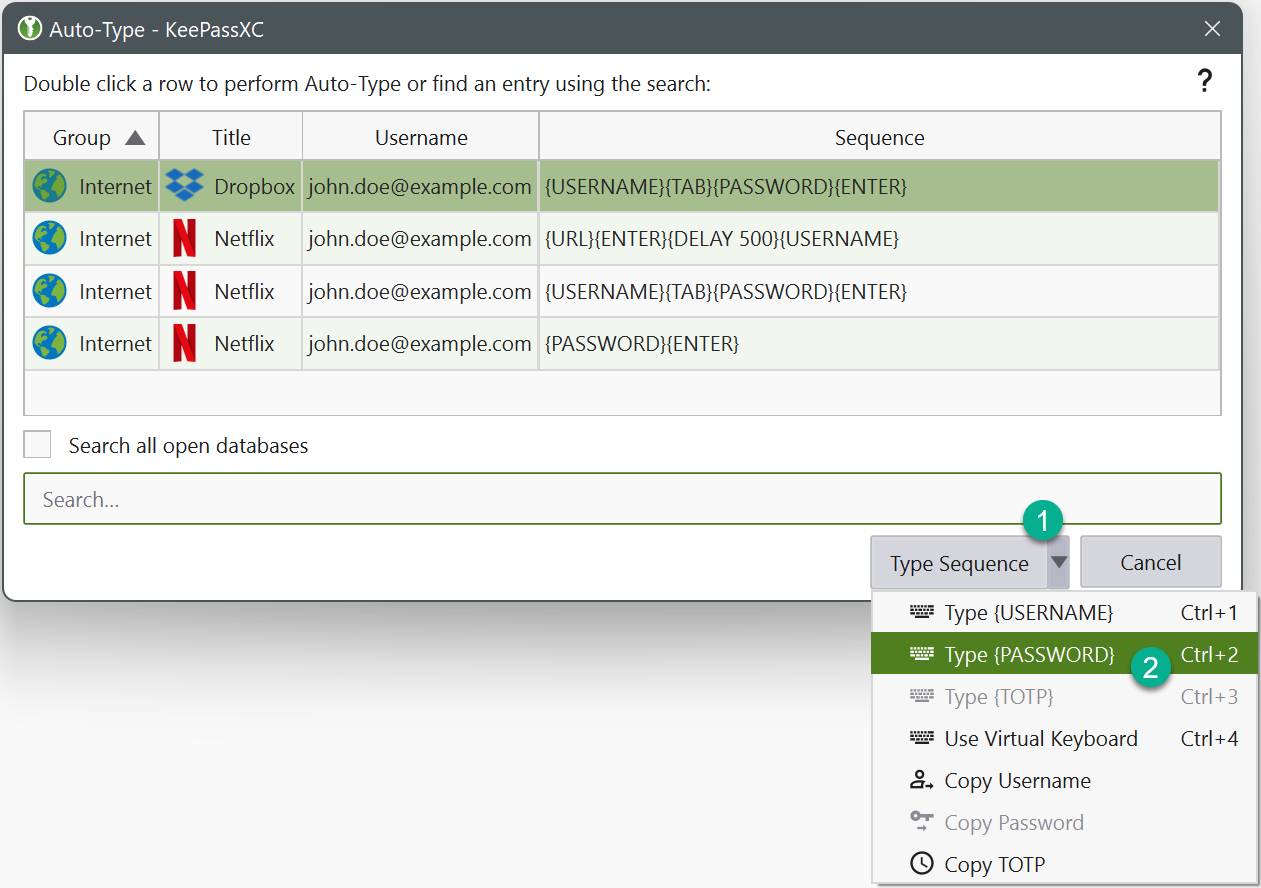
The option to type just the username, password, or current TOTP value is available by right-clicking the desired row or expanding the Type Sequence button options. You can also copy these values to the clipboard.
Performing Entry-Level Auto-Type
You can quickly activate the default Auto-Type sequence for a particular entry using Entry-Level Auto-Type. For this operation, the OpenVireo window will be minimized and the Auto-Type sequence occurs in the previously selected window. You can perform Entry-Level Auto-Type from the toolbar icon (A), entry context menu (B), or by pressing Ctrl+Shift+V.
Wayland Support
On Linux, Auto-Type uses XDG Desktop Portals when running under a Wayland compositor. An implementation of the Remote Desktop Portal and Global Shortcuts Portal must be available on your system for Auto-Type to be available. The following desktop environments are known to provide full or partial support:
KDE Plasma 6.6+ — Supported since 5.27: reconfiguration before 6.6 is done via System Settings → Shortcuts → OpenVireo; before 6.4 have a bug that brings up the configuration dialog on every start.
GNOME 51+ — Supported since 48: reconfiguration from 48 to 50 is done via GNOME Settings → Apps → OpenVireo.
Other compositors (Sway, labwc, Hyprland, etc.) — May require a custom XDG Desktop Portal implementation to provide Remote Desktop and Global Shortcuts services. A generic Python-based implementation, xdg-desktop-portal-pyrtal, can be used as a workaround until official implementations are available.
When running under Wayland, the following limitations apply:
No window title matching. Wayland does not expose the active window title to applications. When you press the global Auto-Type shortcut, the selection dialog will show all available entries from your unlocked databases. Use the keyboard to filter entries quickly. The "remember last used entry" feature is especially useful in this workflow.
No active window tracking. OpenVireo does not track the focused window on Wayland. If keyboard focus changes during an Auto-Type sequence, the typing will not be interrupted and will continue into the newly focused window.
IME / Input Method compatibility. Some input method frameworks (e.g., fcitx5, ibus) may interfere with key simulation, particularly for CJK or virtual keyboard setups. This can cause character corruption or modifier key state issues. These issues are caused by the compositor or the input method framework, not by OpenVireo. If you experience problems, try disabling your IME temporarily during Auto-Type, or check your desktop environment’s virtual keyboard settings. Please report any issues directly to your compositor or input method project.
Additional configuration options are available in the Auto-Type settings when using the desktop portal backend:
Keep remote desktop connection open after performing Auto-Type — When enabled, the remote desktop session remains open after typing, allowing subsequent Auto-Type operations without re-requesting permission.
Remote desktop mode — Controls how long the remote desktop authorization is persisted: never remember (authorization is forgotten immediately), remember until exit (authorization persists until OpenVireo closes), or remember until revoked by desktop (authorization persists until the desktop environment revokes it).
Use remote desktop for clipboard access — Experimental option to use the remote desktop session for clipboard operations (copy and clearing).
Experimental: Prefer desktop portals (Wayland implementation) — When enabled on X11, attempts to use the desktop portal backend instead of the native X11 implementation. This is unlikely to work on most setups and is provided for completeness to support legacy X11 desktops with portals if available.
The User Guide guide covers OpenVireo, based on KeePassXC 2.8.0, last updated 23 October 2026. Found a mistake? Help improve the docs on GitHub.