
An OpenVireo account keeps your vaults in sync between OpenVireo on your computers and OpenVireo Web in your browser, and lets you share vaults with other people and with your organization. Everything is encrypted on your devices, with your master password and a Secret Key that only you have. The account server and the sync server only ever store encrypted vaults and keys sealed to their members, so they can’t read your passwords. An account is optional: OpenVireo works without one exactly as it always has.
Ways to Use OpenVireo
The first time you start OpenVireo, the start screen offers three ways to use it:
Your choice is remembered, so later launches skip the start screen; Account → Sign In or Create Account… brings it back.
| Choice | What it does |
|---|---|
Sign in / Create account | Your vaults live in your OpenVireo account and open with your account’s master password. They sync automatically and can be shared. |
Use my own sync server | Your databases sync with an OpenVireo Sync Server you run yourself. Enter the server’s URL and a pairing code from another of your devices or from the server’s admin; new databases are then set up to sync with that server. Each database keeps its own master password. See OpenVireo Sync Server. |
Use without an account | Database files on your computer, with their own master passwords. Nothing leaves your computer unless you set up a sync yourself. |
Creating an Account
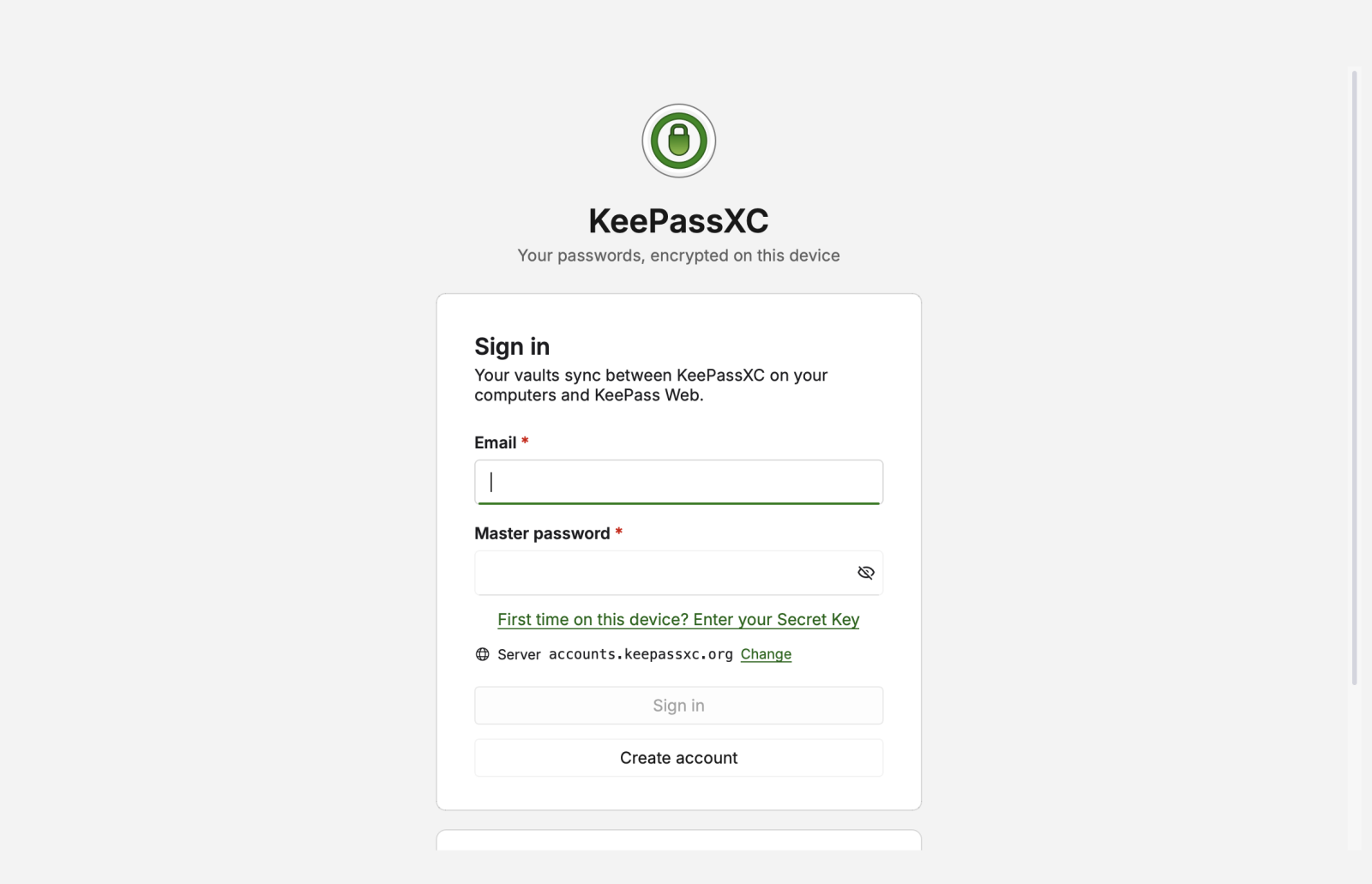
On the start screen, click Create account.
Enter your email address and choose a master password. Nobody can reset your master password, not even the server’s operators, so choose one you will remember. Click Change server only if you use an OpenVireo account server other than the default one.
OpenVireo creates your Secret Key on this computer and shows it once. Click Save Emergency Kit… to save or print the Emergency Kit, a PDF with your email, the server, your Secret Key, and a space to write down your master password, and keep it somewhere safe.
Confirm that you saved the Emergency Kit to finish.
Signing In
On the start screen, enter your email and master password and click Sign in. The first time on a device, also click First time on this device? Enter your Secret Key and enter the Secret Key from your Emergency Kit; afterwards the device keeps it. If you turned on two-step verification, enter the 6-digit code from your authenticator app.
Once you are signed in, your account’s vaults all open at once, with no password of their own. They are listed in the database picker under Personal and under the name of each organization you belong to, and the account button at the far right of the header shows who is signed in.
Managing Your Account
Account → Manage Account… opens your account page in OpenVireo Web in your browser; sign in there if it asks. There you can change your email or master password, turn two-step verification on or off, see your devices and sign them out, and download your Emergency Kit again. Changes made there reach OpenVireo on your other devices automatically.
Account → Sign Out signs this device out of your account and closes its vaults. Databases on your computer stay usable.
The Getting Started guide covers OpenVireo, based on KeePassXC 2.8.0, last updated 23 October 2026. Found a mistake? Help improve the docs on GitHub.