
Application Layout
The OpenVireo interface is designed for simplicity and easy access to your information. The main database view is split into four main partitions detailed below.
You can open multiple databases at the same time. The database picker in the top-left corner shows the current database; click it to switch to another open database, to open your account’s vaults (see OpenVireo Accounts), to create or open a database, to open the Database Settings, or to lock or close databases.
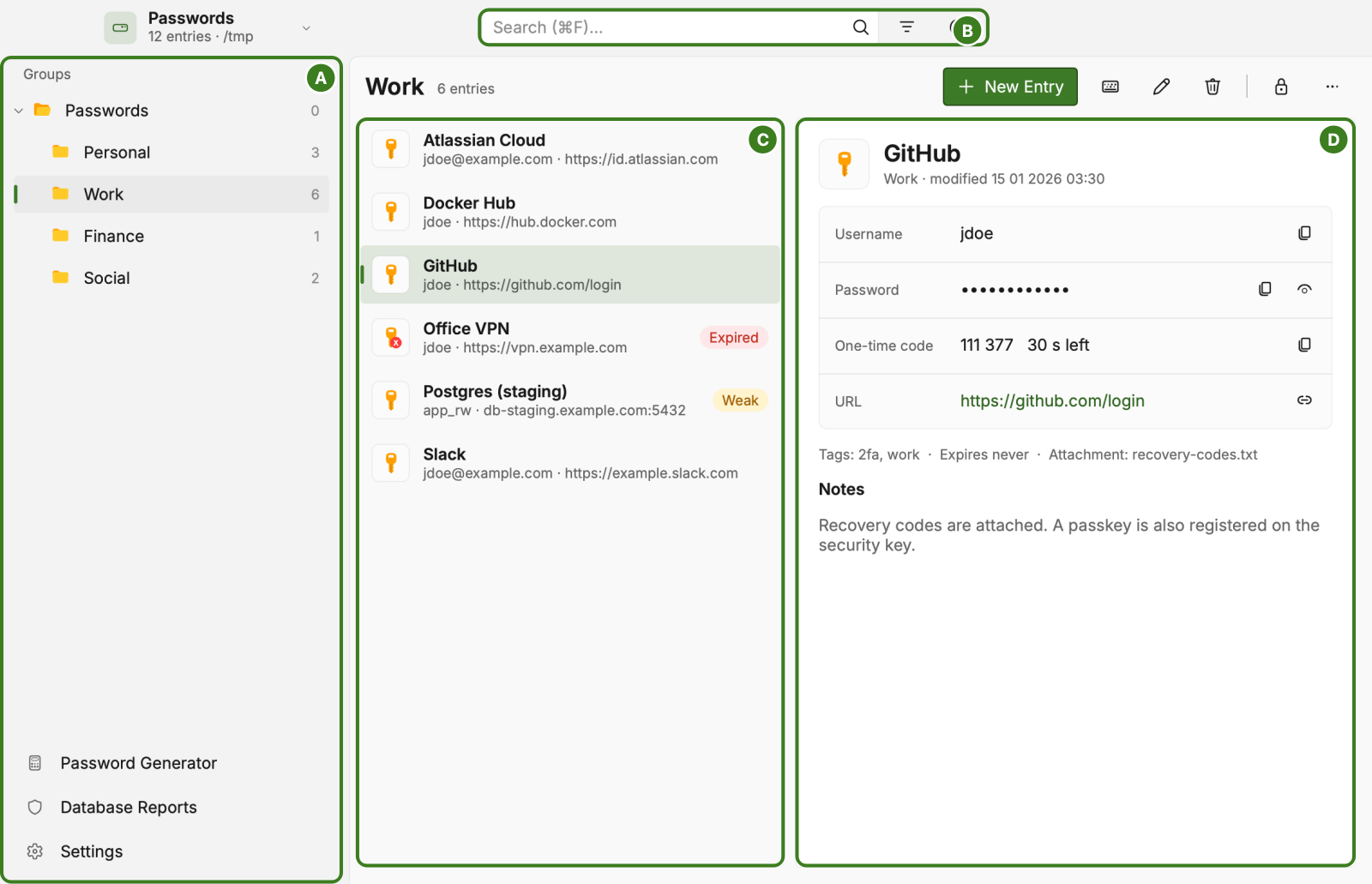
(A) Sidebar – Organize your entries into discrete groups to bring order to all of your sensitive information. Groups can be nested under each other to create a hierarchy. Settings from parent groups get applied to their children. Below the groups, the tags used in the database list their entries with one click; any number of custom tags can be added when editing an entry. At the bottom are the Password Generator, Database Reports, and the application Settings. You can hide this panel on the View menu.
(B) Search – Search the database as you type. The buttons next to the search box set the search options (case sensitive, limit the search to the selected group, press Enter to search), save the search, and show the search tips (also Ctrl+J). See Search.
(C) Entries – Entries contain all the information for a website or application you are storing in OpenVireo. This list shows all the entries in the selected group with their username and URL, and marks expired entries and weak passwords.
(D) Entry details – Shows the selected entry. You can copy the username, password, one-time code, and URL, reveal the password, and open the URL without opening the entry for editing. Tags, expiry, attachments, and notes are shown below. Editing an entry opens it in place of this card.
When a database syncs with a sync server or belongs to an OpenVireo account, a sync status chip at the far right of the header shows whether it is synced, syncing, offline, or needs your attention; click it to sync again or to act on the problem. In account mode an account button next to it shows who is signed in and opens the account menu.
Command Bar
The command bar above the entries shows the selected group and its number of entries, and provides a quick way to perform common tasks: New Entry, Perform Auto-Type, Edit Entry, Delete Entry, and Lock Database. The More commands button (…) holds Clone Entry, Download Favicon, New Group, Edit Group, and Save Database. Commands that don’t apply to the selected entry are disabled. While you edit an entry, the command bar shows Cancel and Save. Every common action in OpenVireo can be controlled with a keyboard shortcut as well, and all of them are in the menus.

Screenshot Security
By default, OpenVireo prevents recordings and screenshots of the application window on Windows and macOS. This prevents inadvertent spillage of information during meetings and disallows other applications to capture the window contents. If you would like to enable screen capture temporarily, navigate to View menu and select Allow Screen Capture. Alternatively, you can start the application with the --allow-screencapture command line flag.
View Options
You can customize the appearance of OpenVireo to your liking. The following options are available in the View menu:
Themes
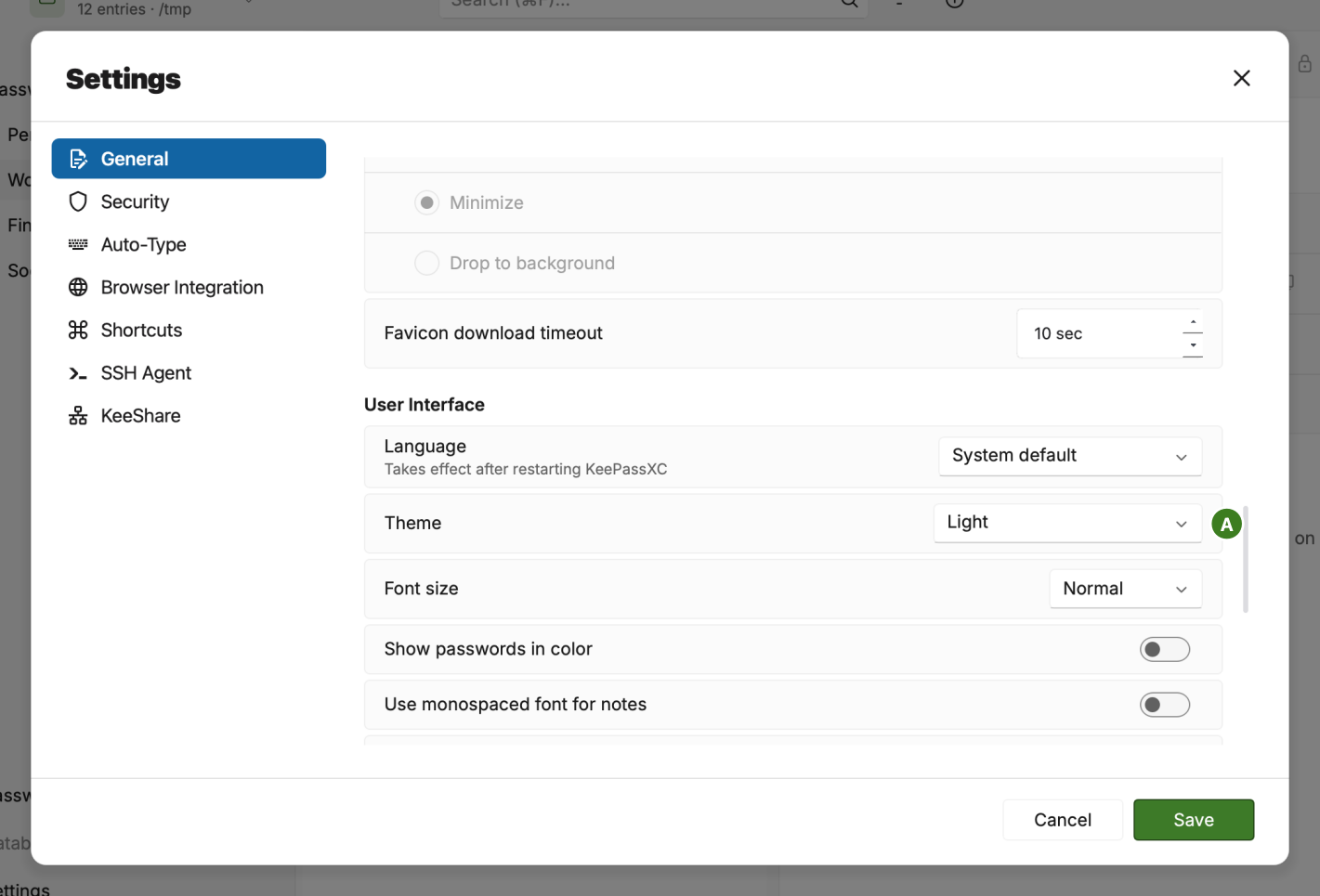
OpenVireo ships with light and dark themes specifically designed to meet accessibility standards. By default (Automatic) the theme follows your system’s light or dark appearance, but you can always choose Light, Dark, or Classic (the platform’s native look) with the Theme setting (A) under Tools → Settings → General → User Interface, or from the View → Theme menu.
Application Settings
Users can configure OpenVireo to their personal tastes with a wide variety of general and security settings that apply to the whole application. These settings are accessible from Tools → Settings or Settings at the bottom of the sidebar, and open in a window over the database. Settings include: startup options, file management, entry management, user interface, language, security controls, and integration settings (Auto-Type, Browser, etc).
Keyboard Shortcuts
| Action | Keyboard Shortcut |
|---|---|
Settings | Ctrl+, |
Open Database | Ctrl+O |
Save Database | Ctrl+S |
Save Database As | Ctrl+Shift+S |
New Database | Ctrl+Shift+N |
Close Database | Ctrl+W |
Lock Current Database | Ctrl+L |
Lock All Databases | Ctrl+Shift+L |
Database Settings | Ctrl+Shift+, |
Database Reports | Ctrl+Shift+R |
Quit | Ctrl+Q |
New Entry | Ctrl+N |
Edit Entry | Enter |
Delete Entry | Del |
Clone Entry | Ctrl+D |
Copy Username | Ctrl+B |
Copy Password | Ctrl+C |
Copy URL | Ctrl+U |
Open URL | Ctrl+Shift+U |
Copy TOTP | Ctrl+T |
Copy Password and TOTP | Ctrl+Y |
Show TOTP | Ctrl+Shift+T |
Trigger AutoType | Ctrl+Shift+V |
Add key to SSH Agent | Ctrl+H |
Remove key from SSH Agent | Ctrl+Shift+H |
Jump to Group (from search) | Ctrl+Shift+J |
Move entry up (if unsorted) | Alt+Up |
Move entry down (if unsorted) | Alt+Down |
Sort Groups A-Z | Ctrl+Down |
Sort Groups Z-A | Ctrl+Up |
Minimize Window | Ctrl+M |
Hide Window | Ctrl+Shift+M |
Select Next Database | Ctrl+Tab |
Select Previous Database | Ctrl+Shift+Tab |
Select the nth database | Ctrl+<n>, where <n> is the database’s position in the database picker |
Toggle Passwords Hidden | Ctrl+Shift+C |
Toggle Usernames Hidden | Ctrl+Shift+B |
Focus Groups (edit if focused) | F1 |
Focus Entries (edit if focused) | F2 |
Focus Search | F3 |
Clear Search | Esc |
Show Search Tips | Ctrl+J |
Show Keyboard Shortcuts | Ctrl+/ |
The Getting Started guide covers OpenVireo, based on KeePassXC 2.8.0, last updated 23 October 2026. Found a mistake? Help improve the docs on GitHub.