
OpenVireo is available for download for the following operating systems and platforms:
Microsoft Windows
Portable and MSI Installer (64-bit)
Linux – Official Cross-Distribution Packages
AppImage
macOS
DMG Installer
To download the OpenVireo installer for your desired platform, visit https://openvireo.com/download or directly from our GitHub Releases.
Before installing OpenVireo, it is recommended that you verify that your downloaded installer matches the signature, which is published alongside the release package. By verifying the signatures of OpenVireo releases, you can verify the authenticity and integrity of the downloaded installation file. This guarantees that the file you downloaded was originally created by the OpenVireo project and its contents have not been tampered with.
To know more about the steps to verify the authenticity and integrity of your downloaded package, visit https://openvireo.com/verifying-signatures.
Microsoft Windows
Only download the Windows MSI installer from https://openvireo.com/download or the GitHub Releases page.
Installing OpenVireo is a simple process. In the following example, installation steps for OpenVireo on Microsoft Windows are described. Installing OpenVireo on other operating systems is also a simple process, which you can accomplish by using the native installers. To know more about the installation instructions on the other operating systems, refer to the OpenVireo User Manual.
To install OpenVireo on Microsoft Windows, perform the following steps:
Double click on the OpenVireo-Y.Y.Y-WinZZ.msi file. Here, Y.Y.Y represents the version of the software and ZZ represents the 32-bit/64-bit version of the Microsoft Windows operating system.
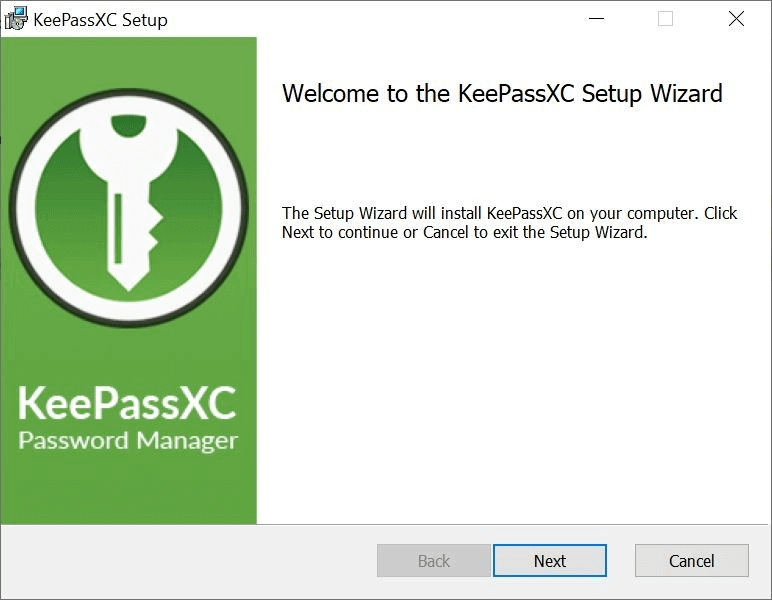
Install wizard Click Next and follow the simple instructions on the OpenVireo Setup Wizard to complete the installation. You will have the option to choose your install location, add a desktop shortcut, and launch on startup.
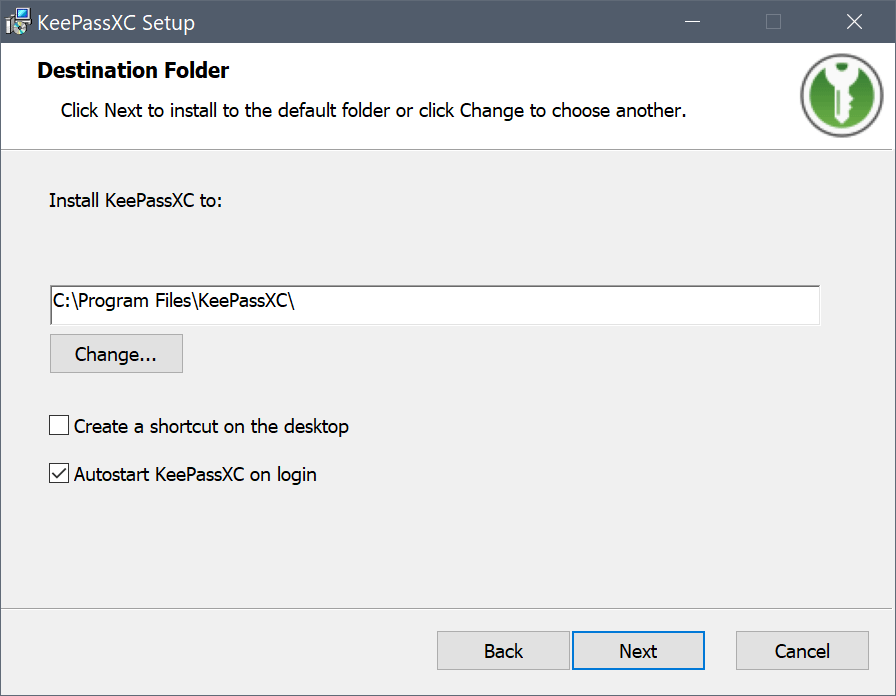
Install wizard (cont)
The following options can be set when running the MSI in an unattended installation:
LAUNCHAPPONEXIT – Launch OpenVireo after install (default ON)
AUTOSTARTPROGRAM – OpenVireo will auto-start on login (default ON)
INSTALLDESKTOPSHORTCUT – A desktop icon will be installed (default OFF)
Example: msiexec.exe /q /i OpenVireo-Y.Y.Y-WinZZ.msi AUTOSTARTPROGRAM=0
Linux
On Linux, download the OpenVireo AppImage from the download page, make it executable, and run it. See the AppImage FAQ for details.
macOS
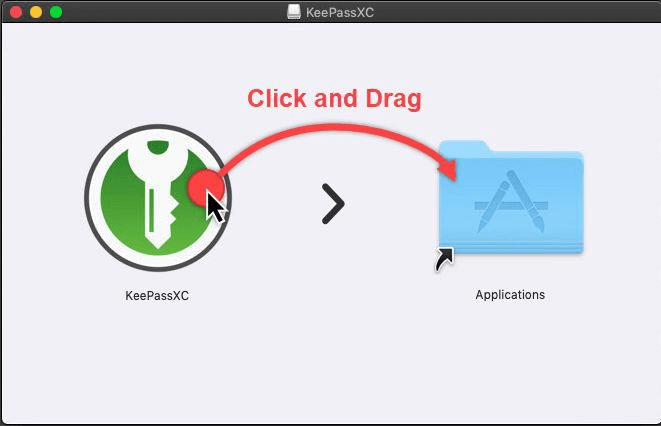
To install the OpenVireo app on macOS, double click on the downloaded DMG file and use the click and drag option as shown:
The Getting Started guide covers OpenVireo, based on KeePassXC 2.8.0, last updated 23 October 2026. Found a mistake? Help improve the docs on GitHub.