
Creating Your First Database
To start using OpenVireo, you need to first create a database that will store the password and other details.
To create a database, perform the following steps:
Open your OpenVireo application. The first time, the start screen asks how you want to use OpenVireo; choose Use without an account for a database file of your own (see Ways to Use OpenVireo for the other choices). Click the Create Database button (A):
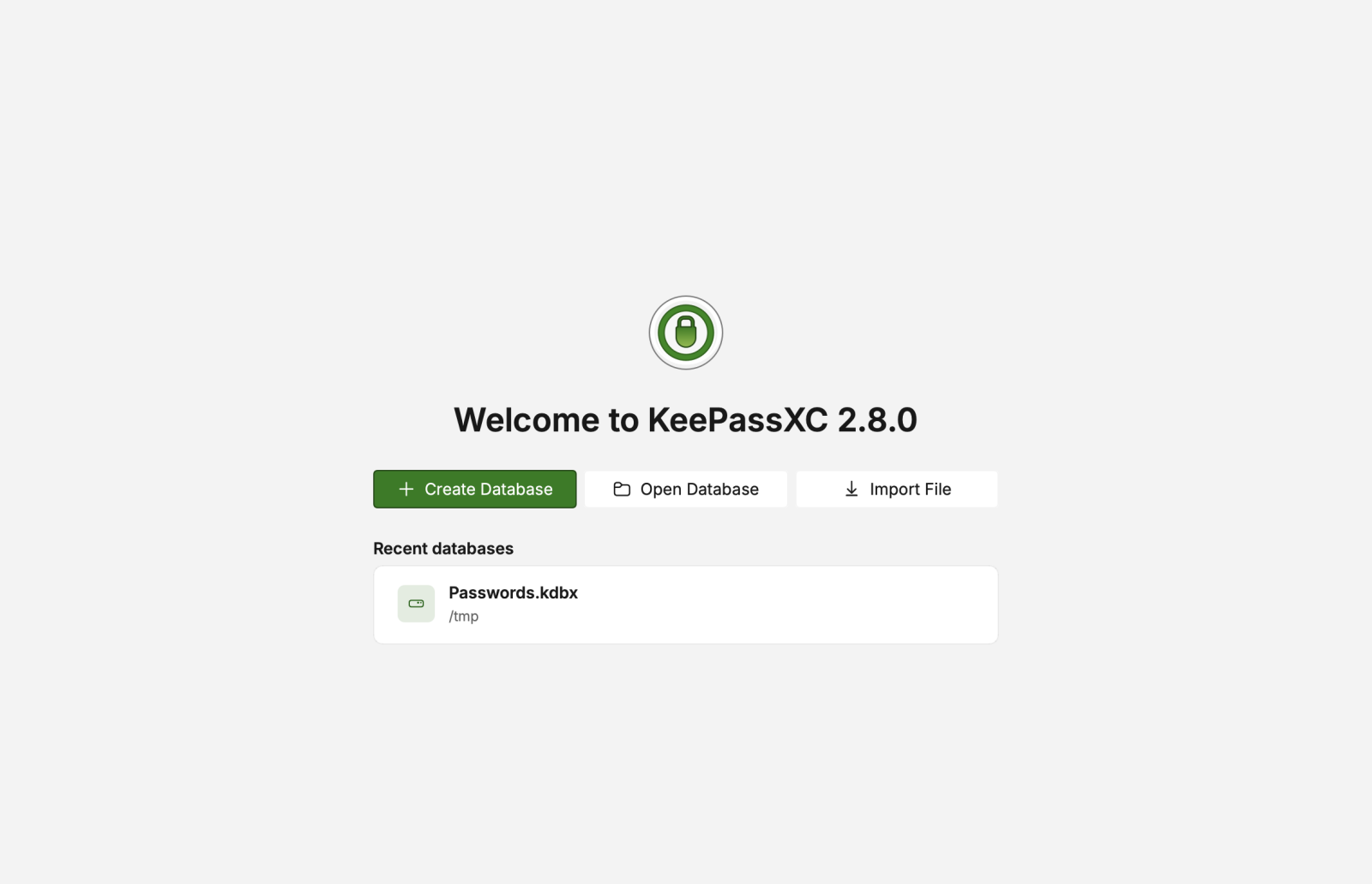
Create database – Welcome screen The database creation wizard appears. Enter the desired database name and a short description (optional):
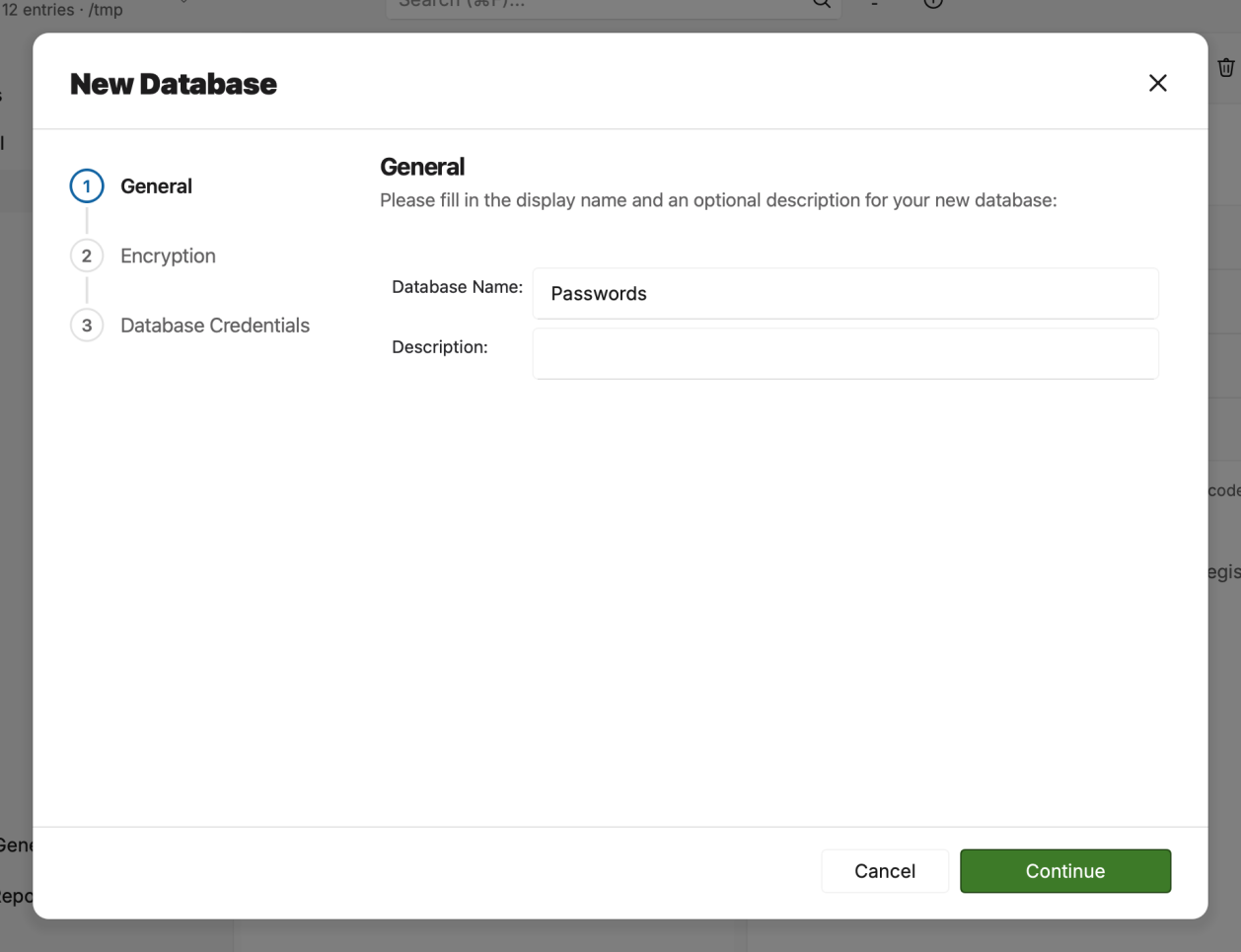
Create database – General information Click Continue. The Encryption Settings screen appears, we don’t recommend making any changes besides increasing or decreasing the decryption time using the slider. Setting the Decryption Time slider at higher values means that the database will have higher level of protection but the time taken by the database to open will increase.
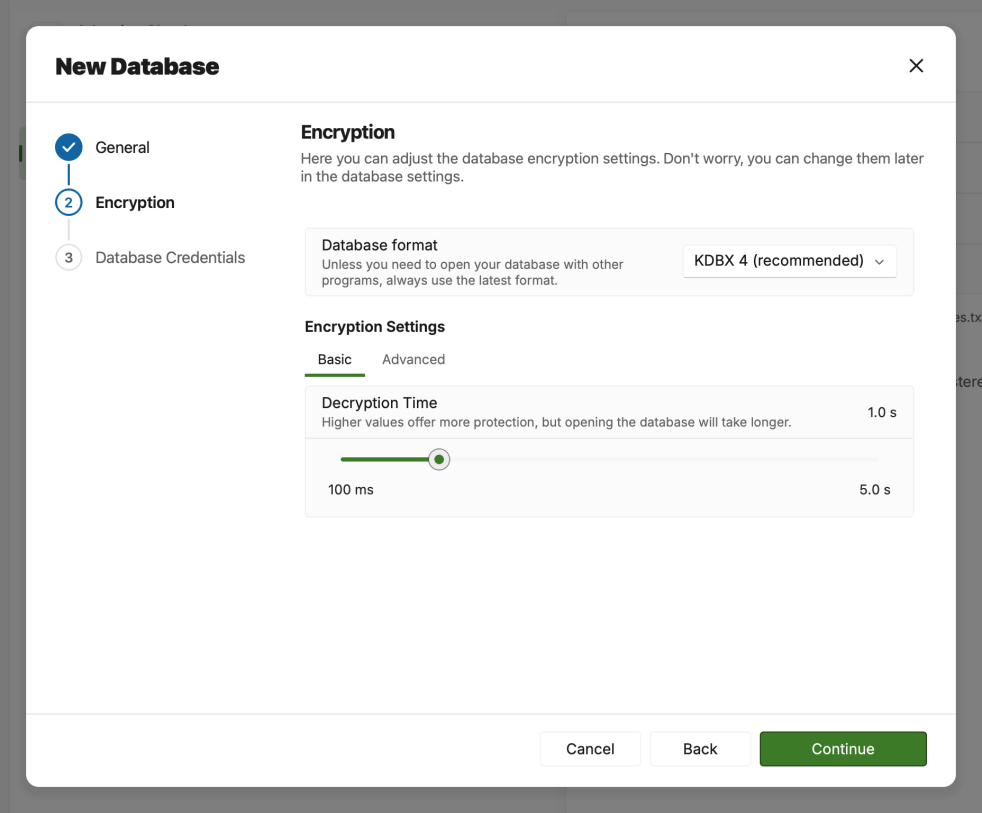
Create database – Encryption settings Click the Continue button. The Database Credentials screen appears, enter your desired database password. We recommend using a long, randomized password.
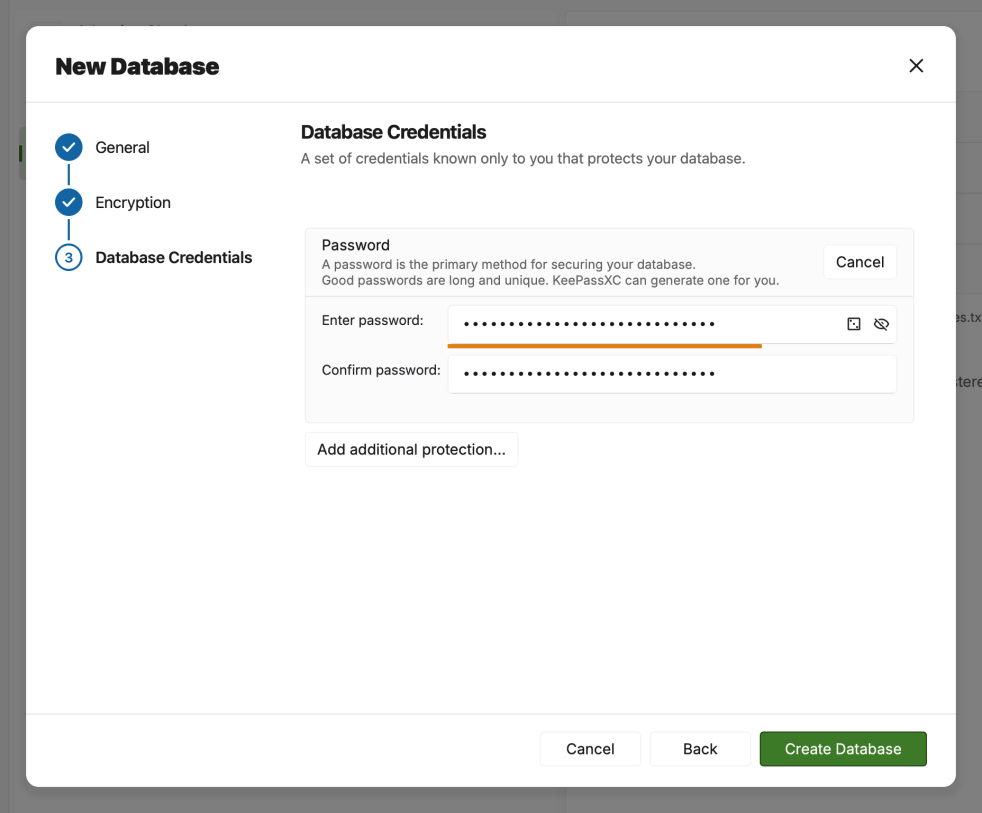
Create database – Database credentials (A) Open the password generator
(B) Toggle password visibilityClick Done. You will be prompted to select a location to save your database file. The database file is saved on to your computer with the default
.kdbxextension. You can store your database wherever you wish, it is fully encrypted at all times preventing unauthorized access.
Storing Your Database
The database file that you create might contain highly sensitive data and must be stored in a very secure way. You must make sure that the database is always protected with a strong and long password. The database file that is protected with a strong and long password is secure and encrypted while stored on your computer or cloud storage service.
Make sure that you or someone else does not accidentally delete the database file. Deletion of the database file will result in the total loss of all your information (including all your passwords!) and a lot of inconvenience to manually retrieve your logins for various web applications. Do not share the credentials to access your database file with anyone unless you absolutely trust them (spouse, child, etc.).
Opening an Existing Database
To open an existing database, perform the following steps:
Open your OpenVireo application. Click the Open existing database button (A) or select a recent database from the Recent Databases list (B).
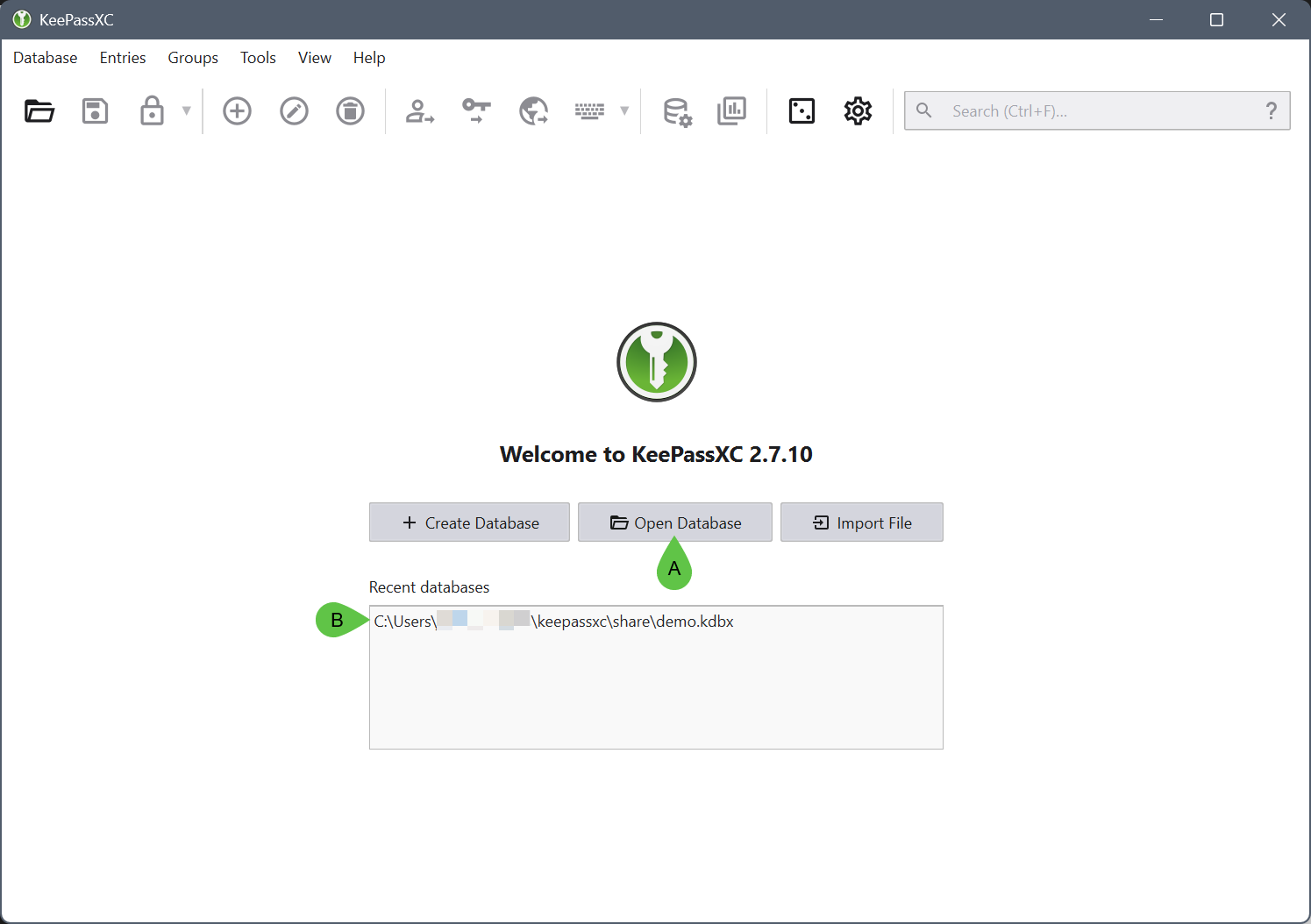
Open an existing database Navigate to the location of the database on your computer and open the database file. The database unlock screen will appear:
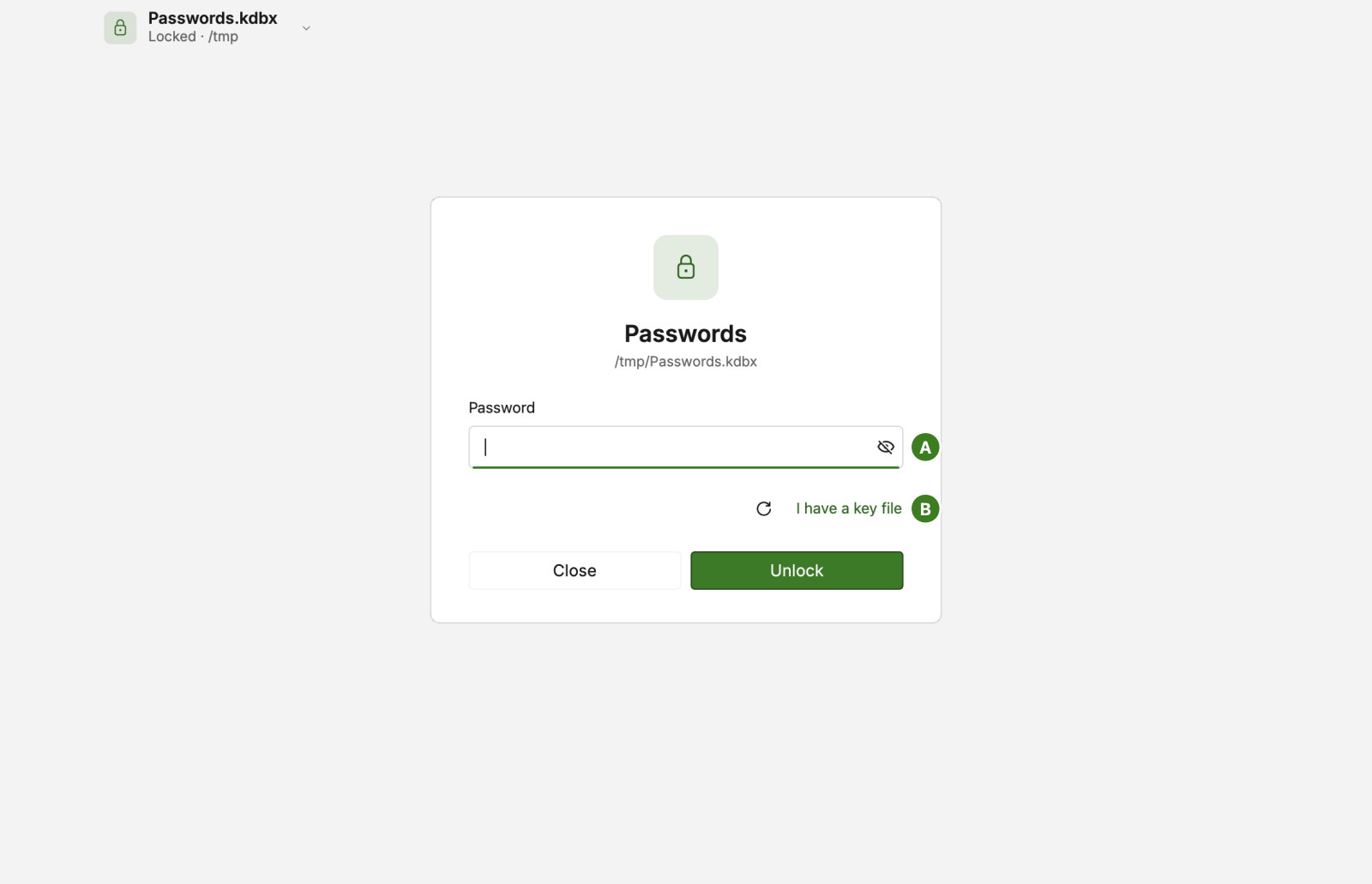
Database unlock screen Enter the password for your database.
(Optional) Click I have a key file (A) if you have one as an additional authentication factor for your database.
(Optional) Plug in your configured YubiKey or OnlyKey to use it as an additional authentication factor. If you don’t see it listed, press the refresh button (B).
Click OK. The database opens and the following screen is displayed:
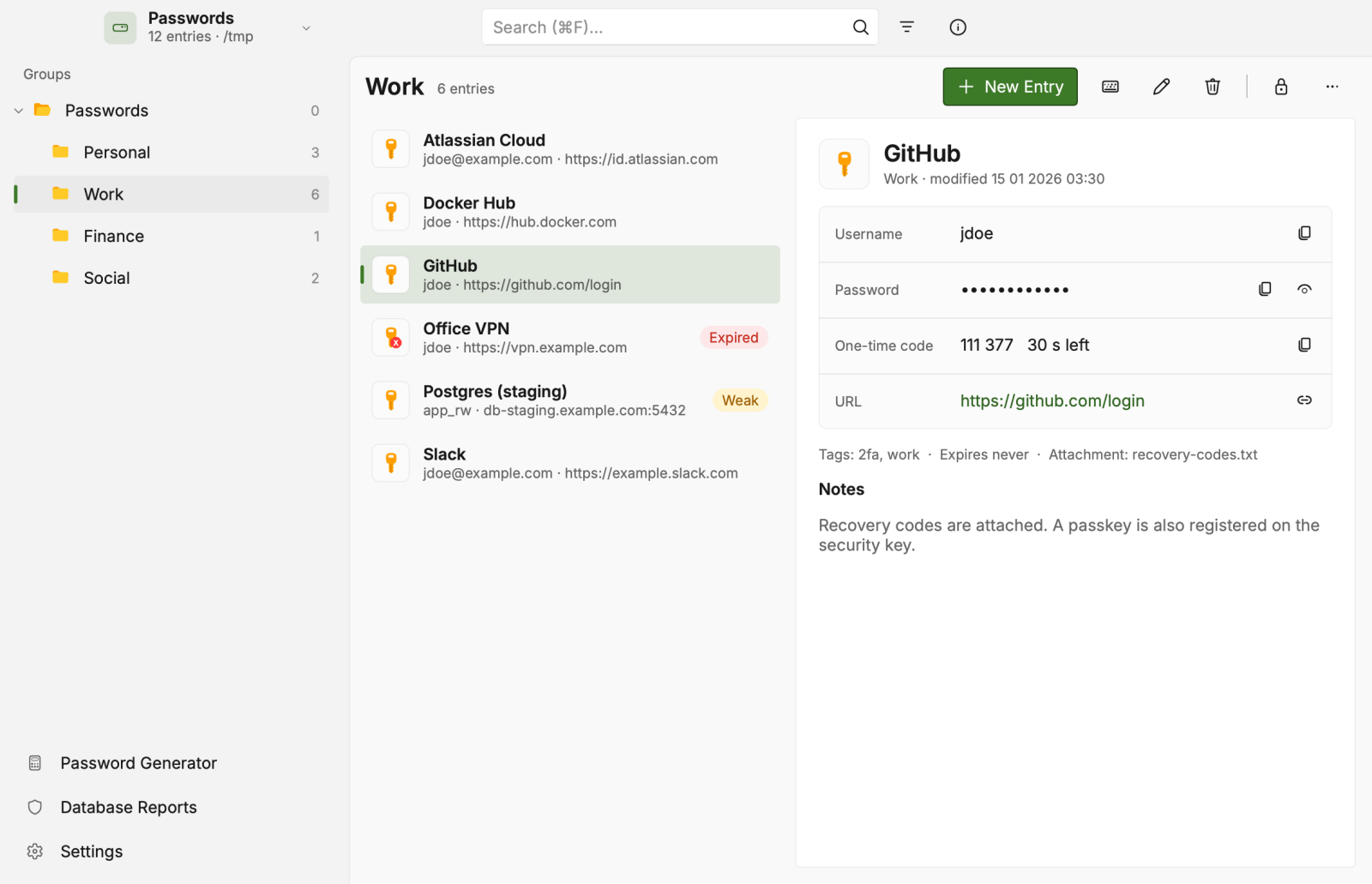
Unlocked database
Quick Unlock
On Windows and macOS, subject to hardware availability, your credentials can be securely stored to enable subsequent unlocking of your database through biometric authentication. This is enabled by default on Windows using Windows Hello and on macOS using Touch ID or Apple Watch services. You can disable this feature in the Application Settings under the Security section.
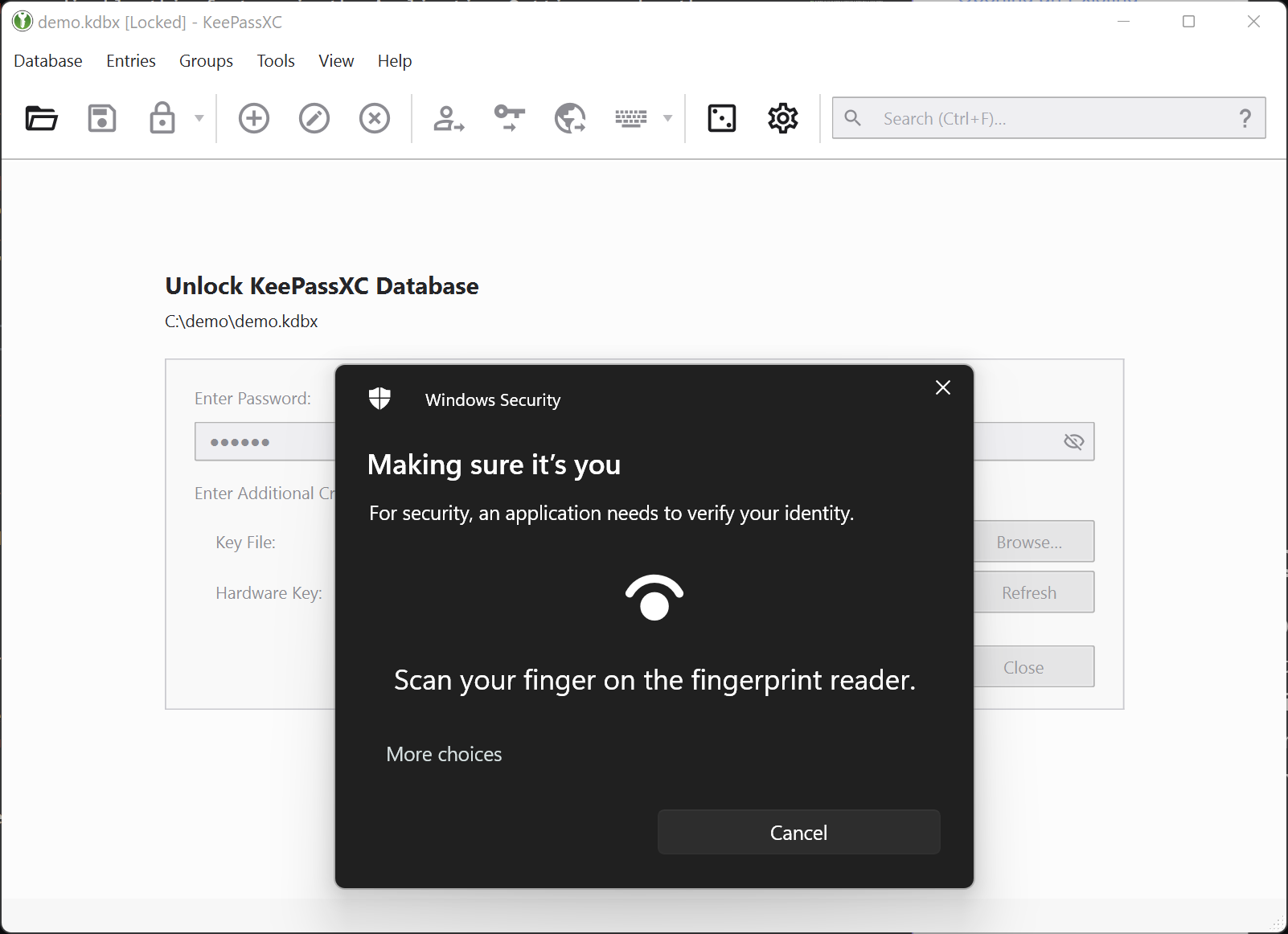
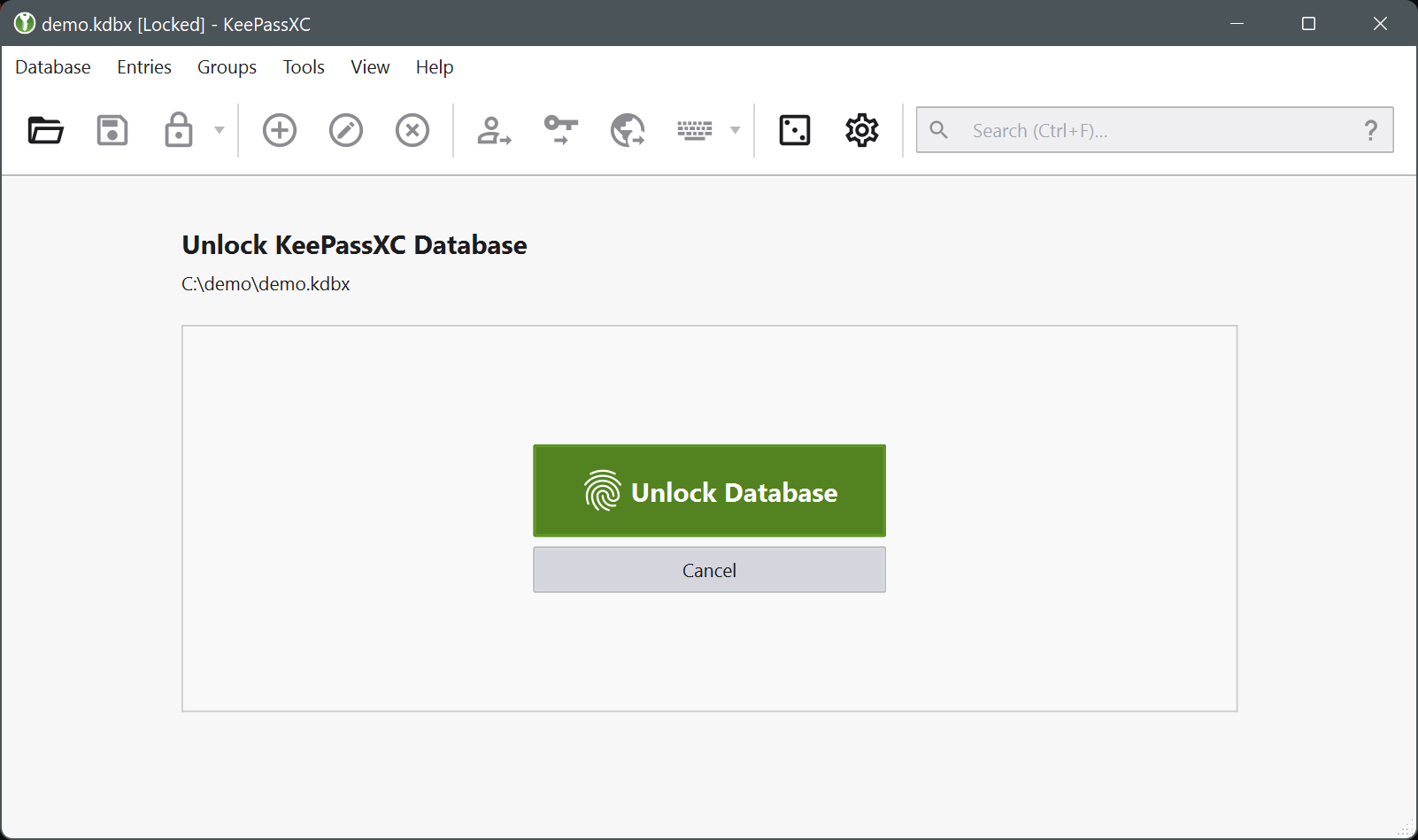
When your database is locked, you will see the following unlock dialog. Simply press Enter or click on Unlock Database to initiate the biometric authentication process. If you are using a hardware key (e.g. YubiKey), it must be connected to your computer to complete the unlock.
Entry Handling
Entries in OpenVireo are the fundamental units where all your sensitive information is stored. Each entry can contain various fields such as usernames, passwords, URLs, attachments, and notes. You can create, edit, clone, and delete entries as needed. Additionally, OpenVireo supports advanced features like TOTP for two-factor authentication, custom attributes, and entry history to track changes over time. Proper management of entries ensures that your data is organized, secure, and easily accessible when needed.
Adding an Entry
All the details such as usernames, passwords, URLs, attachments, notes, and so on are stored in database entries. You can create as many entries as you want in the database.
To add an entry, perform the following step:
Click New Entry in the command bar, navigate to Entries > New Entry, or press Ctrl+N. The entry opens in a window over the database:
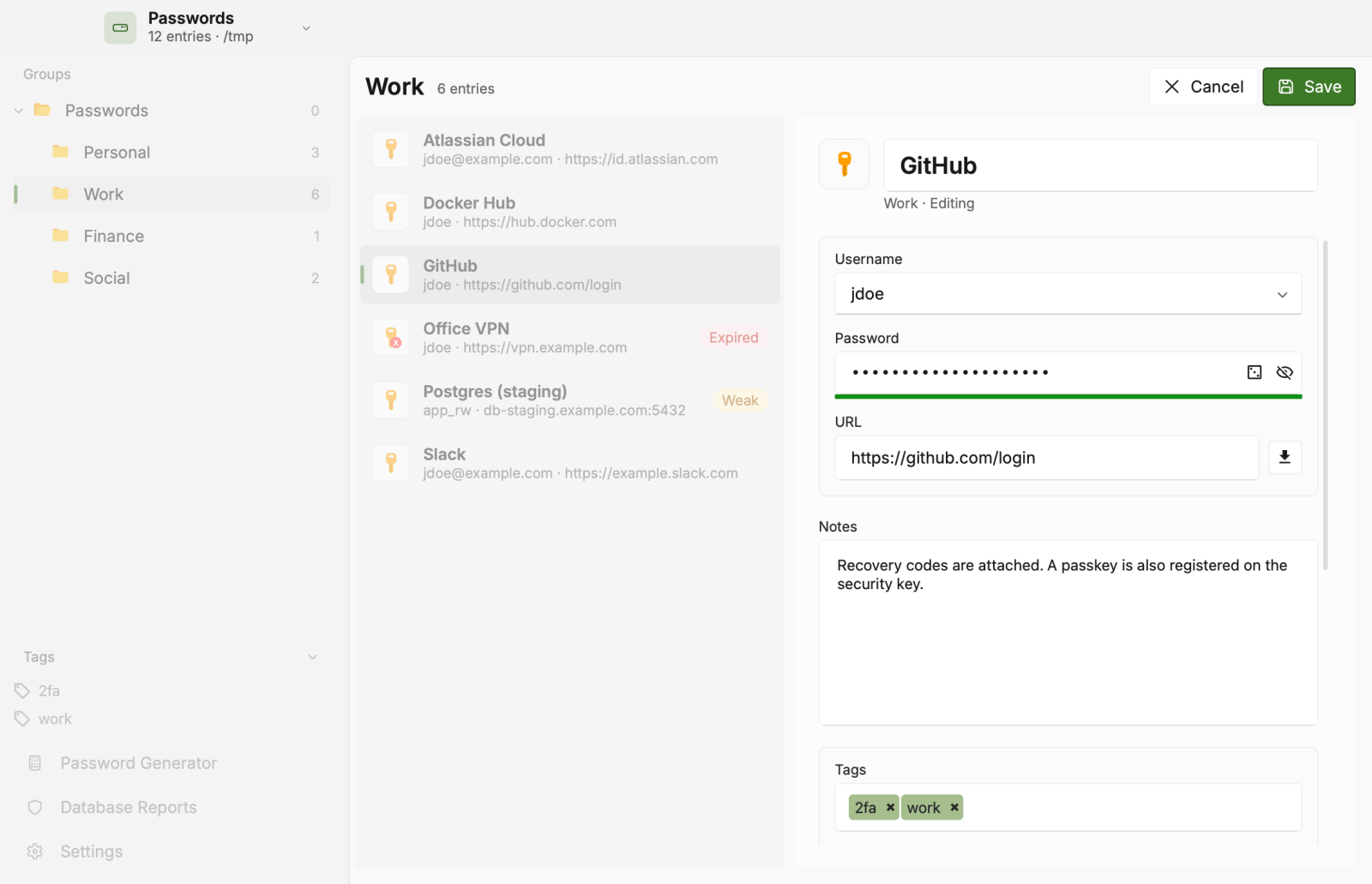
Adding a new entry Enter a desired title for the entry, username, password, URL, and notes on this screen.
Your most frequently used usernames will automatically be available in the username drop-down menu. They will also auto-complete for you when typing.
You can generate a secure random password by clicking the dice icon in the password field to launch the password generator. Reveal the password by clicking the eye icon.
After you add a URL to an entry you can press the download button to automatically download the website’s icon for this entry.
(Optional) Add tags to the entry to quickly find it using the tags in the sidebar. You can easily add new tags or select existing ones from the drop-down list.
(Optional) Select the Expires check-box to set the expiry date for the password. You can manually enter the date and time or click the Presets button to select an expiry date and time for your password.
Click Save to add the entry to your database.
Editing an Entry
To edit the details in an entry, perform the following steps:
Select the entry you want to edit.
Press Enter, click the Edit Entry (pencil) button in the command bar, or right-click and select Edit Entry from the menu. The entry details become editable in place.
Make the desired changes.
Click Save in the command bar, or Cancel to discard the changes.
Adding TOTP to an Entry
Timed One-Time Passwords (TOTP) are a popular choice for two-factor authentication methods. These codes are typically six digits long and change every 30 seconds. They are derived from a shared secret value and the current time. Once set up, OpenVireo can calculate TOTP codes like any authenticator app, such as Google Authenticator. The codes can be used with copy/paste, browser extension, and Auto-Type.
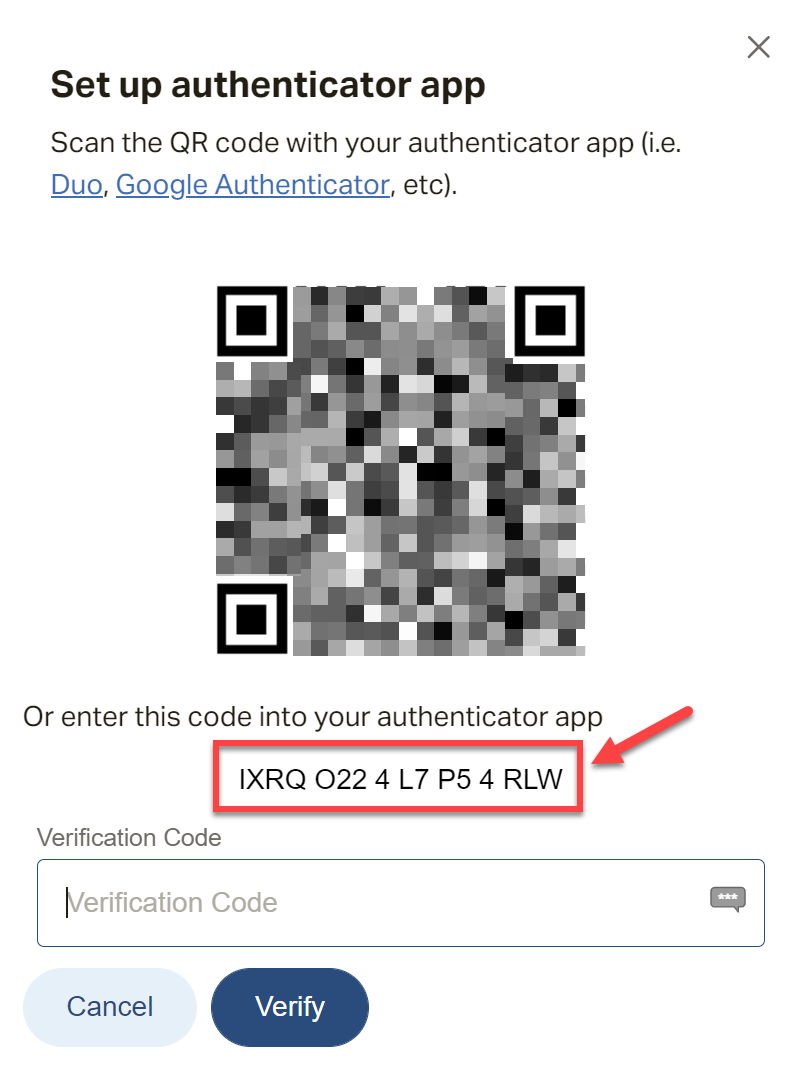
To add TOTP to a database entry, you must first retrieve the secret string from the website or application you are authenticating to. Often this secret is accompanied with a QR code and can be copy/pasted below. Example:
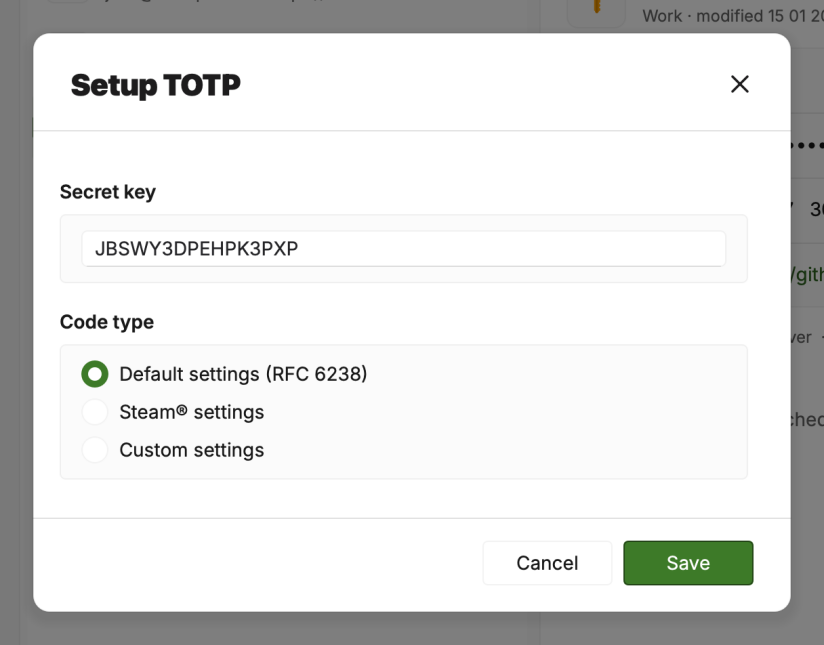
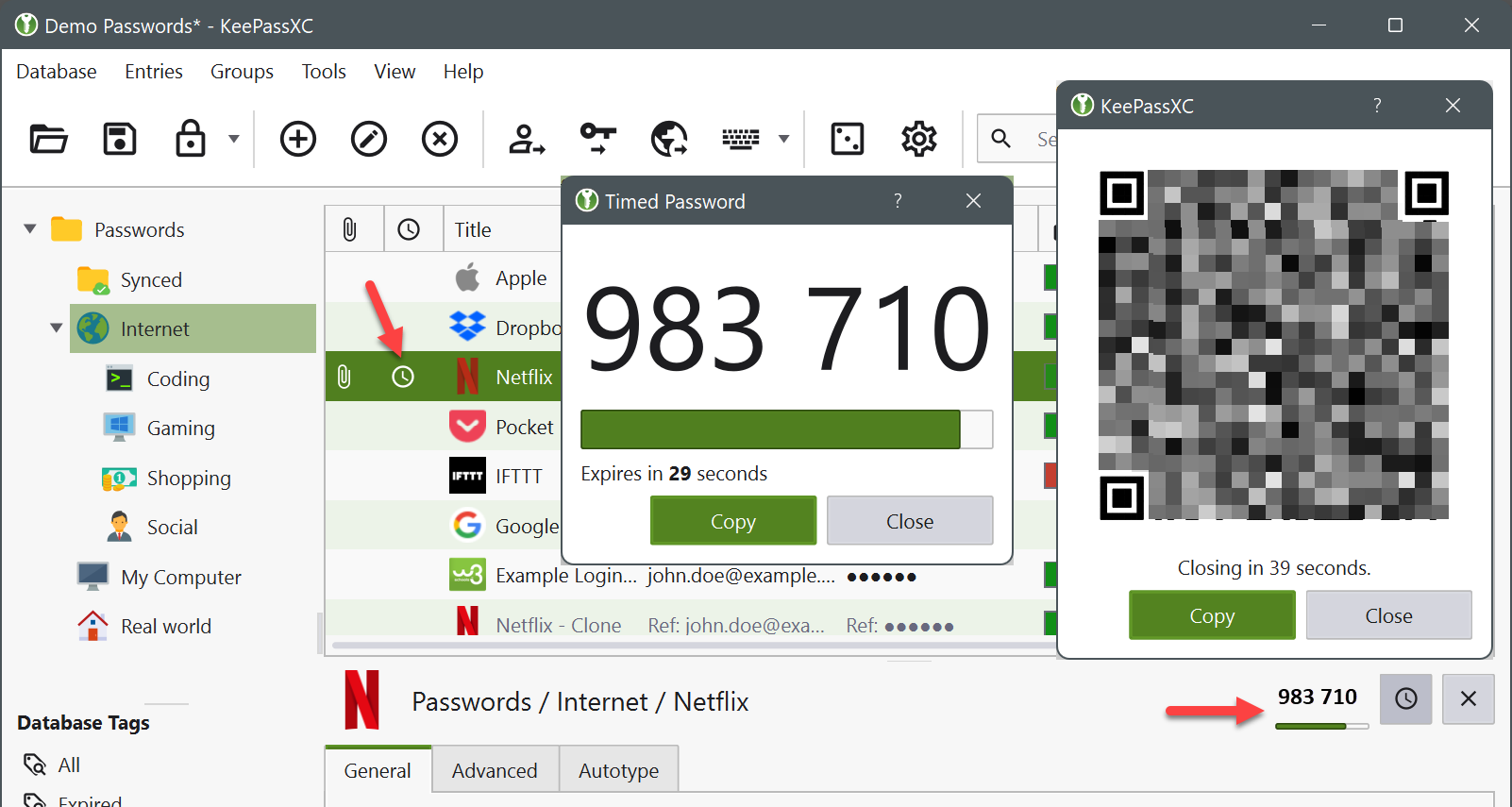
Once obtained, right-click the desired entry (1), choose TOTP → Set up TOTP… (2), and the setup dialog will appear. In that dialog, paste the secret code from the website (3), setup any custom settings (rare) (4), then press OK to save the settings.
After an entry is configured with TOTP, you will see a clock icon in that entry’s row and have the ability to reveal the current code in the preview pane. Additionally, you can navigate to the entry’s TOTP menu to show the code in a separate window. You can also view the secret and configuration as a QR code for exporting to a mobile device. TOTP codes can be entered into forms with the browser extension, with Auto-Type by using the {TOTP} placeholder, or via menu options in the Auto-Type selection dialog.
Entry Icons
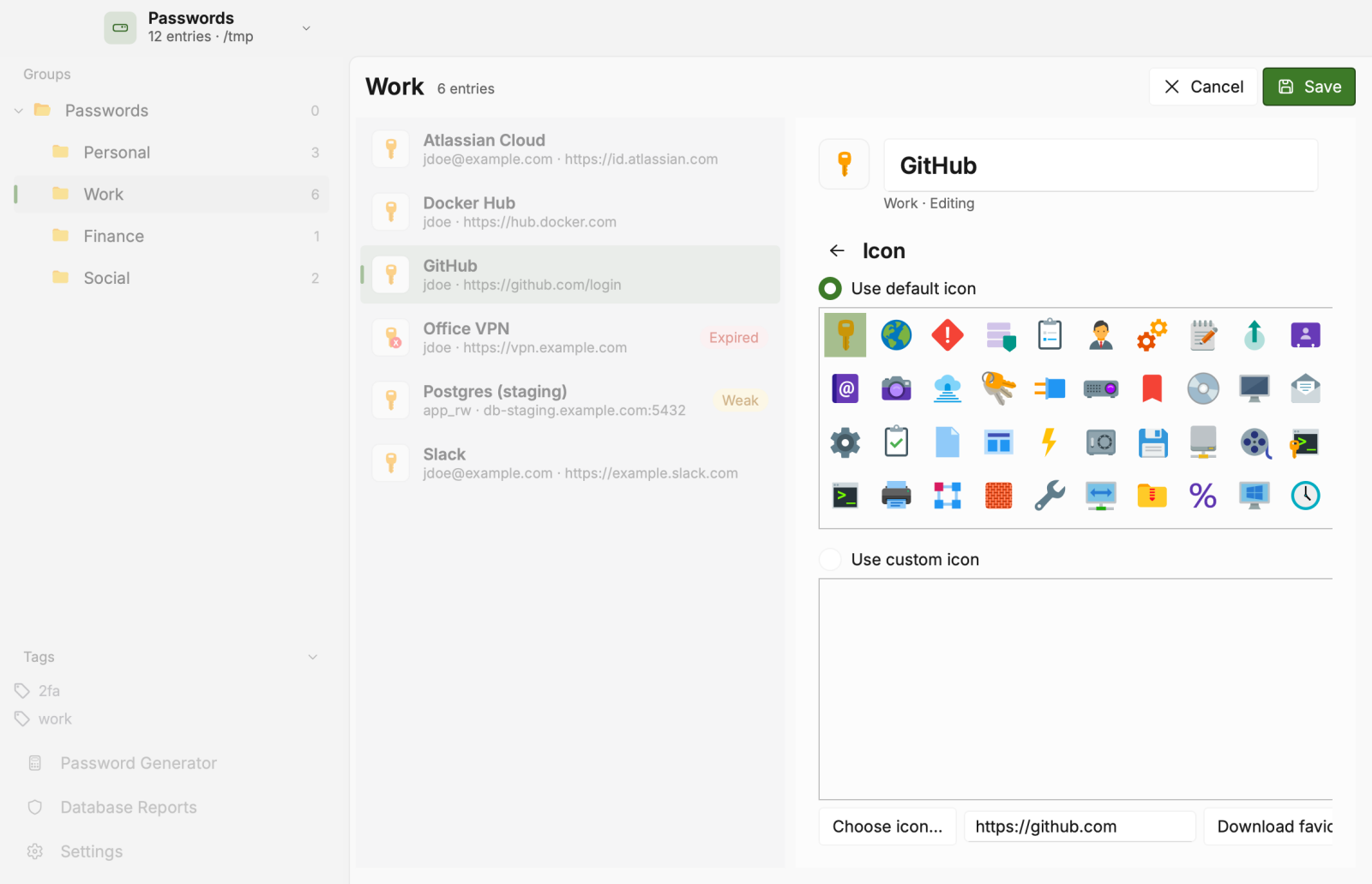
You can select an icon to be displayed with each entry for easy identification. OpenVireo comes with a set of default icons that you can use or you can use your own custom icons. If you defined a URL with an entry, you can also download the favorite icon for that particular website.
Deleting an Entry
To delete an entry, perform the following steps:
Select the entry you want to delete and press the Del button on your keyboard.
You will be prompted to move the entry to the Recycle Bin (if enabled).
To permanently delete the entry, navigate to the Recycle Bin, select the entry you want to delete and press the Del button on your keyboard.
Search
OpenVireo provides a robust search that enables you to find specific entries in the databases using different modifiers, wild card characters, and logical operators. By default, search considers the following fields when matching your query: Title, Username, URL, Tags, and Notes. To include other fields and/or narrow your search to specific fields, you can use the search syntax described below.
Modifiers and Fields
| Modifier | Description |
|---|---|
- | Exclude this term from results |
! | Exclude this term from results |
+ | Match this term exactly |
* | Term is handled as a regular expression |
The following fields can be searched along with their abbreviated name in parentheses:
Title (t)
Username (u)
Password (p, pw)
URL (url)
Notes (n)
Attribute names and values (attr)
Attachment (attach)
Group (g)
Tags (tag)
Entry State (is:expired, is:weak)
Wild Card Characters and Logical Operators
| Wild Card Character | Description |
|---|---|
* | Match anything |
? | Match one character |
| | Logical OR |
Sample Search Queries
The following tables lists a few samples search queries for your reference:
| Query | Description |
|---|---|
| Searches the Username field for johnsmith and the URL field for www.google.com. |
| Searches the Username field for john OR smith. |
| Search the username field for exactly johnsmith, the URL must not contain www.google.com, and notes contains secret note [digit]. |
| Searches all additional attributes for any name OR value equal to mystring123. |
| Search exactly for the 'personal' tag and do not include tags such as 'my personal'. |
| Searches for all expired entries with weak passwords. |
The Getting Started guide covers OpenVireo, based on KeePassXC 2.8.0, last updated 23 October 2026. Found a mistake? Help improve the docs on GitHub.