
The OpenVireo Browser extension is installed within your web browser so that you can automatically pull usernames and passwords from OpenVireo and fill them directly into website fields. It is a very useful and secure extension that enhances your productivity while using OpenVireo. With this extension, you do not need to manually copy the data from your OpenVireo database and paste it into the website fields. The OpenVireo Browser extension is available on the following web browsers:
Google Chrome, Vivaldi, and Brave
Mozilla Firefox and Tor-Browser
Microsoft Edge
Chromium
Install the Browser Extension
You can download the OpenVireo Browser extension from your web browser. To download the OpenVireo Browser extension, perform the following steps:
Download the extension for your browser (Chrome, Chromium, Vivaldi, Brave, Microsoft Edge, Firefox, or Tor Browser) from the OpenVireo Browser releases on GitHub. OpenVireo Browser is not yet listed in the browser extension stores.
Click the button to install/add the extension to the browser. Accept any confirmation dialogs.
Configure OpenVireo Browser
To start using OpenVireo Browser, you must configure it so that it can communicate with the OpenVireo application on your desktop.
To configure OpenVireo Browser, perform the following steps:
Open the OpenVireo application on your desktop and navigate to Tools > Settings.
Click the Browser Integration option on the left-hand side (1). The following screen appears:
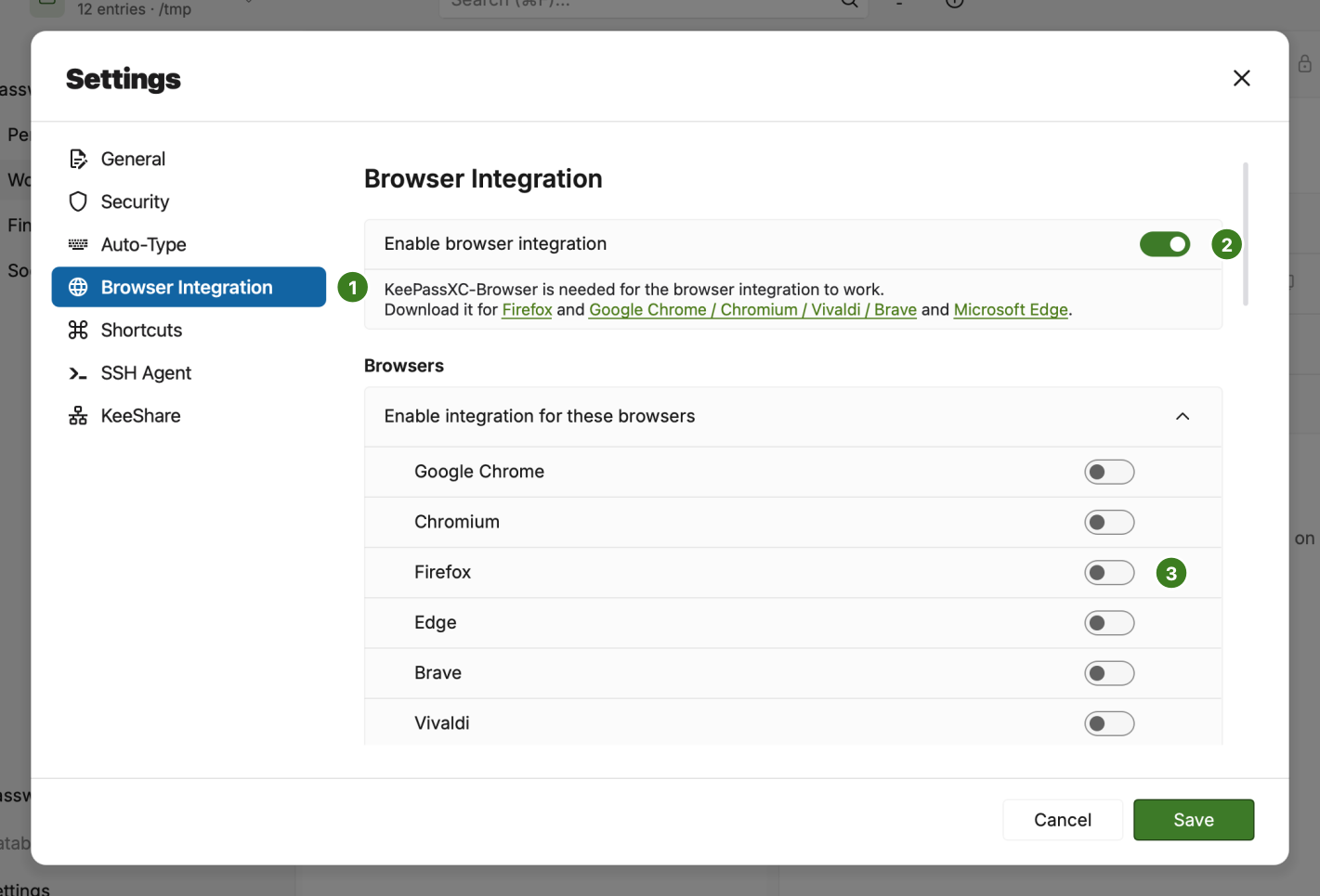
Browser Settings Click the Enable browser integration checkbox (2). Then select the browsers for which you have downloaded the OpenVireo Browser extension (3) and click OK.
Ensure your database is unlocked, then open (or restart) your browser.
Click the OpenVireo Browser extension icon (A) in your browser (see figure below). A pop-up window appears.
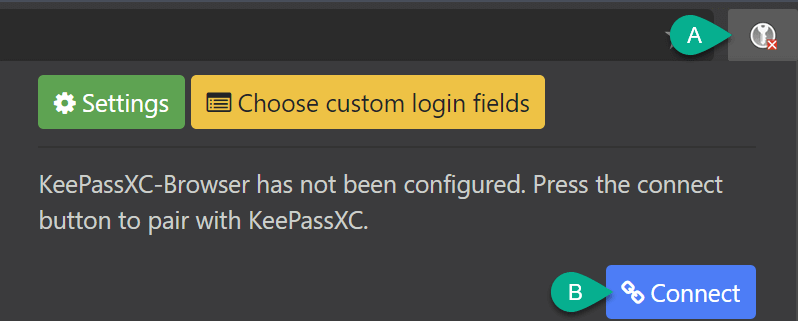
Connect Extension to OpenVireo Click the Connect button (B) in the pop-up window to complete integrating the OpenVireo Browser extension with your OpenVireo desktop application.
You are now prompted to enter a unique name to identify the connection between this browser and your database. Enter a unique name in the field (e.g., firefox-laptop) and click the Save and allow access button.
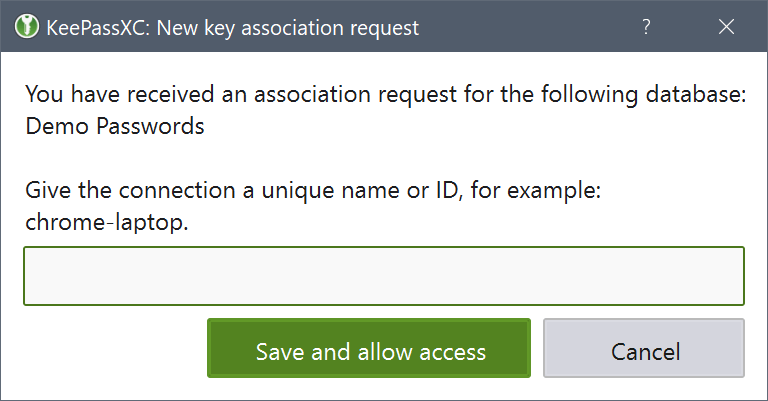
Extension Association Dialog
Using the Browser Extension
The OpenVireo Browser extension lets you automatically fill the entries from your OpenVireo database into the fields on websites you visit. To do so, perform the following steps:
Open your OpenVireo desktop application and unlock your database.
Open your web browser. The OpenVireo Browser extension icon in your browser window will change based on its connection state. The figure below shows the different states.
(A) OpenVireo is not running or is disconnected.
(B) OpenVireo is running, but OpenVireo Browser Extension is not connected to the current database.
(C) Connected to OpenVireo, but database is locked.
(D) Connected to OpenVireo and ready to use. If the icon is shown with a number, it indicates the number of credentials found for the current site.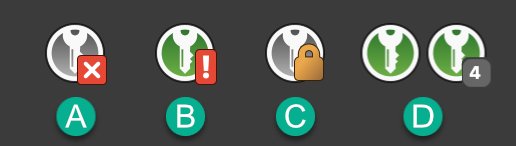
Extension Icon States If the OpenVireo desktop application is not connected with the OpenVireo Browser extension, click the extension icon in your web browser and click Reload from the pop-up window as shown in the following screen.
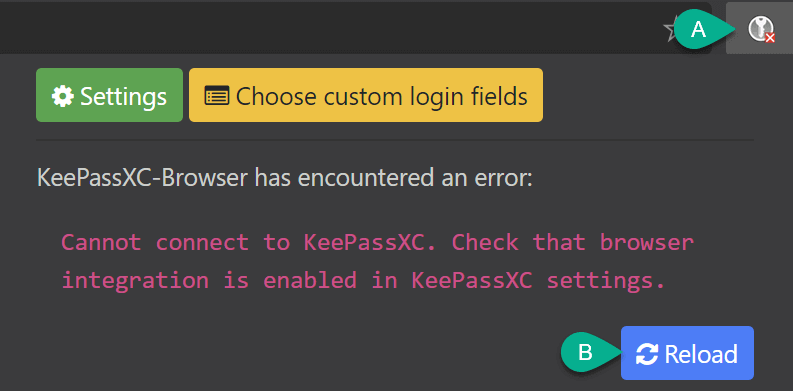
Reload Extension Connection Open the URL for which you want to use with your database. If you have previously created an entry in your database then the OpenVireo Browser Confirm Access dialog may appear:
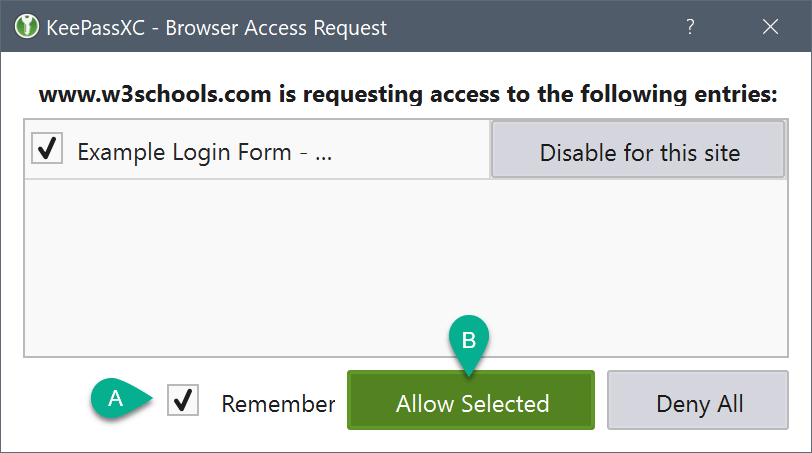
Confirm Access Dialog Ensure the credentials you want to use are checked, then click (A) Remember (optional), then click Allow Selected (B).
In your website, the OpenVireo icon will appear in the username field of the login form (A). Click the icon to populate the field with your stored credentials. If you have more than one credential for this website, a dropdown will appear to choose the one to use.
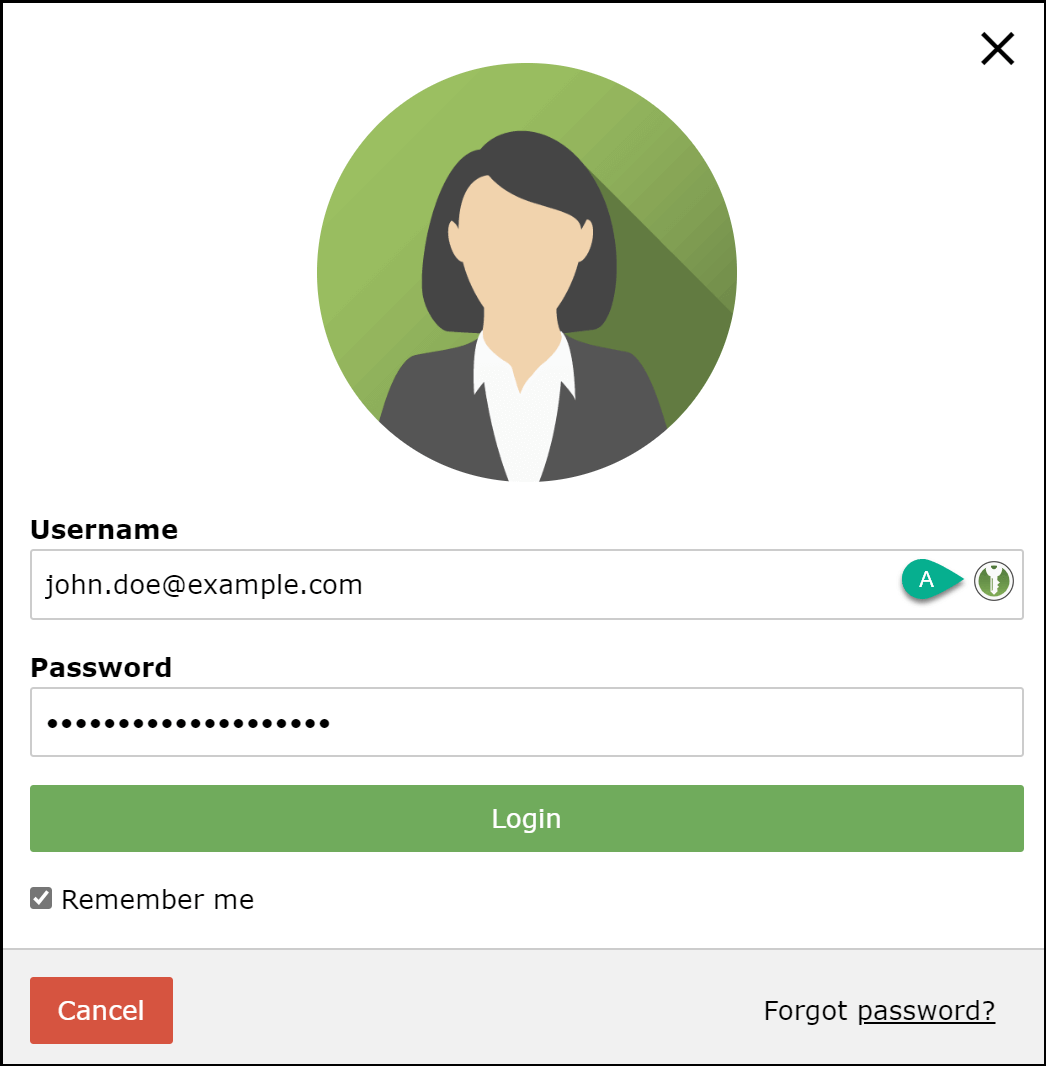
Fill Credentials
Generate Passwords
The OpenVireo Browser Extension also lets you generate passwords directly in your browser. This feature can be used for websites with existing credentials as well as for new websites. You can then choose to update/add the credentials to your OpenVireo database directly from the Browser.
Ensure your database is unlocked and configured to use the Browser extension as shown above.
Right click on a password field and from the OpenVireo sub-menu choose Show Password Generator. The standard OpenVireo password generator will appear.
Configure the password generation options and click Apply Password when done. The generated password will be filled into the previously selected field.
When you have successfully submitted the password on the website, a popup will appear asking you to either update an existing entry or add a new one.
The Getting Started guide covers OpenVireo, based on KeePassXC 2.8.0, last updated 23 October 2026. Found a mistake? Help improve the docs on GitHub.