
If you’ve used KeePass, KeePassXC, KeePassDX or Strongbox, you already have a .kdbx file full of passwords. OpenVireo
reads that format natively, and now you can import one straight into your account: merge it into a vault you already
have, add it alongside, or turn it into a new synced vault.
Do you need to import at all?
Maybe not. OpenVireo opens .kdbx files directly, with no account, just like KeePassXC. If you’re happy keeping your
database as a file, open it and carry on.
Import is for when you want what’s in that file to live in an OpenVireo account, synced to your other devices and shareable with other people.
Where to find it
- Web app: open a database, then choose Import from .kdbx… in its menu.
- Desktop: Database › Import…, then choose KeePass 2 Database (.kdbx).
- iPhone: import a
.kdbxfrom Files into a vault.
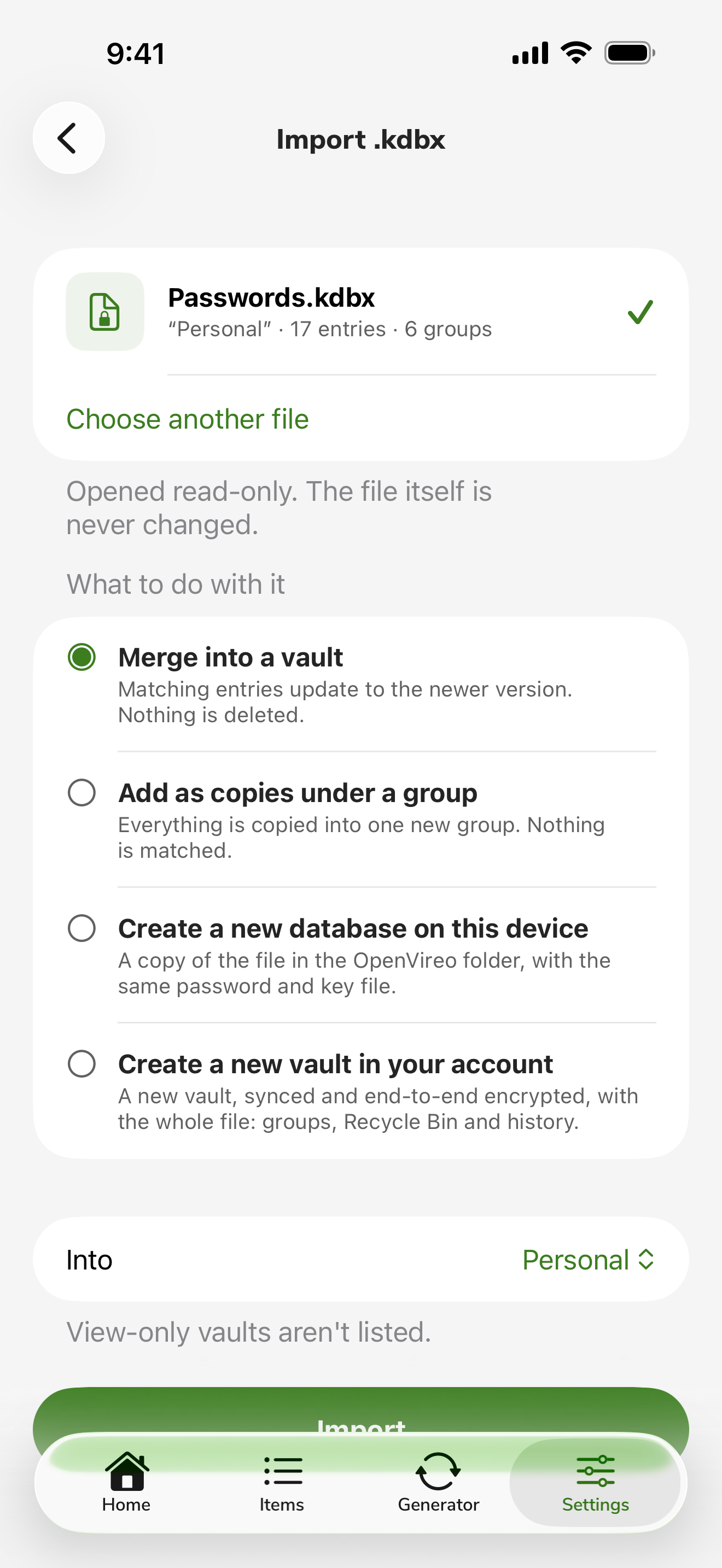
Pick the file and enter its master password and/or key file. You’ll see a short summary, the database’s name and how many entries and groups it has, before anything changes.
Three things you can do with it
Merge into an existing vault. Entries are matched by their unique ID. New ones are added in the same place in the tree. Where an entry exists in both, the newer version wins and the older one goes into the entry’s history, so nothing is lost. Importing the same file twice changes nothing, and importing a file you exported from the vault earlier simply brings it up to date.
Add as copies under a group. The whole file goes into one new group, named after the file, with nothing matched. This suits a database you want to keep separate, like an old work database you’re folding into your personal vault.
Create a new vault. The file becomes a new vault in your account, personal or in an organization you manage, with its history and its Recycle Bin. On desktop you can also make a new local database instead.
When it’s done, you get one line saying what happened: “Imported into Work: 12 new entries, 3 updated, 40 unchanged.”
What it never does
An import is built to be safe to try:
- It never changes your file. The
.kdbxis opened read-only, in memory. - It never deletes anything from the vault you import into. Merging only adds and updates.
- It leaves the file’s settings behind. Things like the old database’s sync settings and browser-integration keys stay in the file instead of landing in your vault.
- It skips the old Recycle Bin, so you don’t end up with a second “Recycle Bin” group full of things you’d already thrown away.
- Your vault keeps its name. Merging a file doesn’t rename your vault after the file’s root group.
Everything happens on your device. The file is decrypted locally, and only the encrypted vault is uploaded, the same as any other edit.
A few details
- Offline: merging into a vault that’s already open works offline, like any other edit, and syncs when you’re back. Creating a new vault needs a connection.
- Read-only vaults: if you can only view a vault, you can’t merge into it, but you can still make a new vault from the file.
- Hardware keys: files protected with a YubiKey or another challenge-response key can’t be imported this way yet. On desktop, open the file with File › Open and use Database › Merge from database… instead.
Download OpenVireo or open the web app to bring your database over.
Feedback
Please report any bugs you encounter at our GitHub issue tracker. See our contact page for further options.